What you will do
You will save your profile, skills, work preferences and job boards. An account without an active subscription then proceeds to the Subscription screen. Purchasing a plan is a separate action.
Before you start
- Access
- Your own CVER account and the ability to sign in. Complete registration and any required account confirmation before starting. You do not need an administrator role.
- Starting point
- After your first sign-in: “Let's shape your job search”, on the CV step. If you have already completed onboarding, edit your profile in Settings instead.
- Details
- Your full name, target role or job title, experience level and years of experience, skills and work preferences. Profile links and salary expectations are optional.
- CV
- An optional PDF, JPG, PNG or TIFF, up to 4 MB. You can complete setup without a file. The screenshots use a fictional CV for Alex Morgan.
- Time
- About 5–10 minutes, depending on the details to review and the time needed to read your CV. Do not refresh before saving: unfinished answers do not persist after a page reload.
- Market and language
- The interface language and search market are separate. This example uses remote work in the Polish market. Review the suggested sources and currency and adjust them to your own search.
Watch the complete process
Silent recording with English captions. Enable captions in the player's menu.
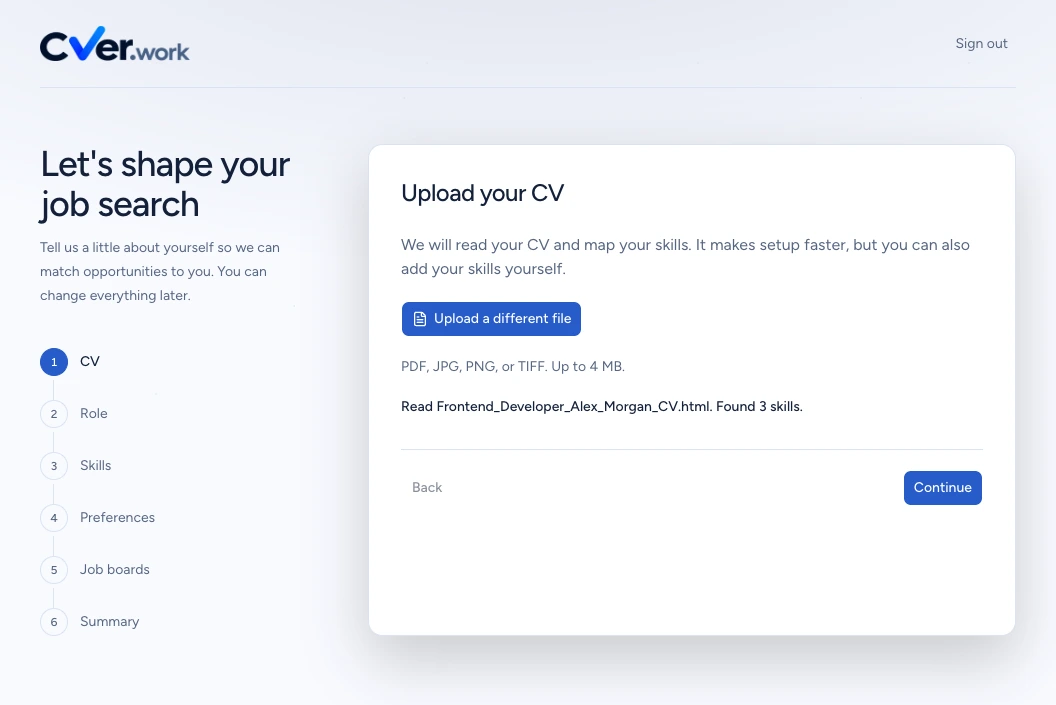
Step 1. Upload your CV or skip the import
On “Upload your CV”, select “Choose a file” and pick a PDF, JPG, PNG or TIFF no larger than 4 MB.
Wait for reading to finish. The name of the saved document and the number of skills found appear below the button. Select “Continue” to review them on the following screens.
If you do not have a CV or prefer to enter your details yourself, select “Skip and choose manually”. This opens Role without an import. An account without an active subscription has three import attempts during setup; failed attempts also count towards the limit.
Expected result: “What do you do?” opens. After an import, some fields are already filled in and remain editable.
Step 2. Choose your field and experience level
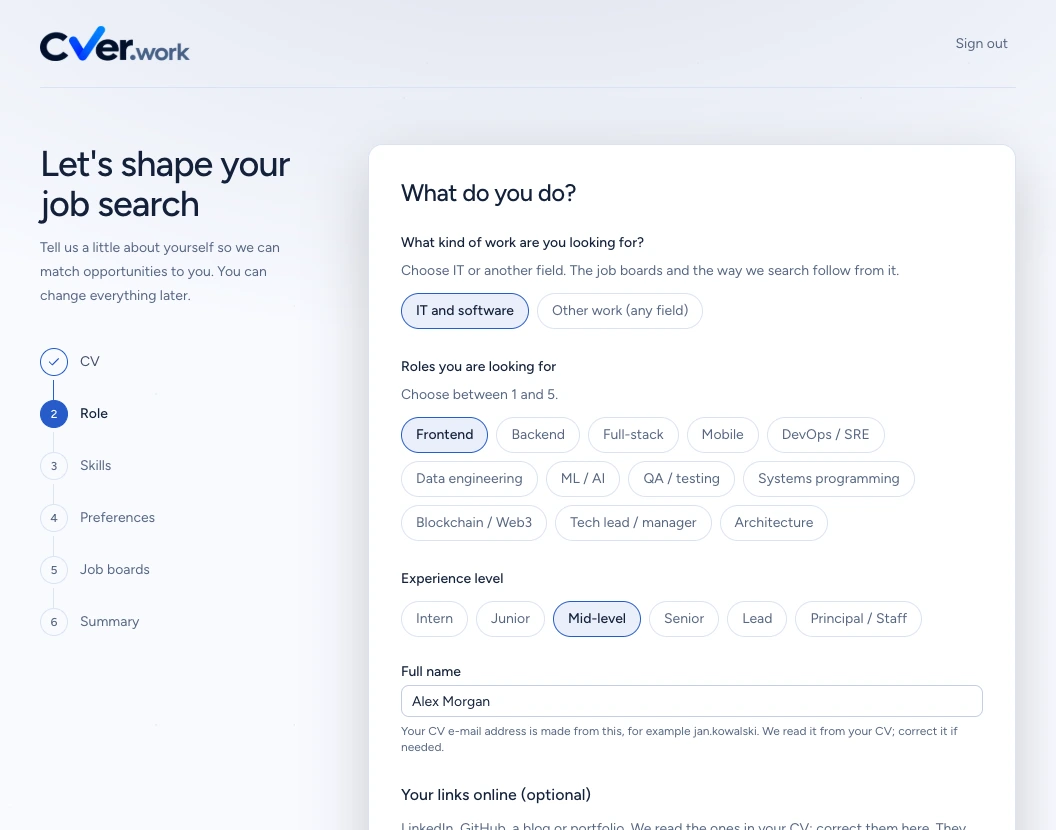
Under “What kind of work are you looking for?”, choose “IT and software” or “Other work (any field)”. This changes how you describe your target jobs and which job boards are suggested.
For IT, select one to five options under “Roles you are looking for”. In the example, we keep Frontend and deselect the other role detected from the CV.
Outside IT, enter a name under “Job titles you are looking for” and select “Add”. You can add up to five titles, such as “Customer support”.
Choose your “Experience level”. Our example uses “Mid-level”. Review this choice even if it was suggested from your CV.
Expected result: A role or added job title and an experience level are selected. You remain on the Role screen.
Step 3. Review your profile details
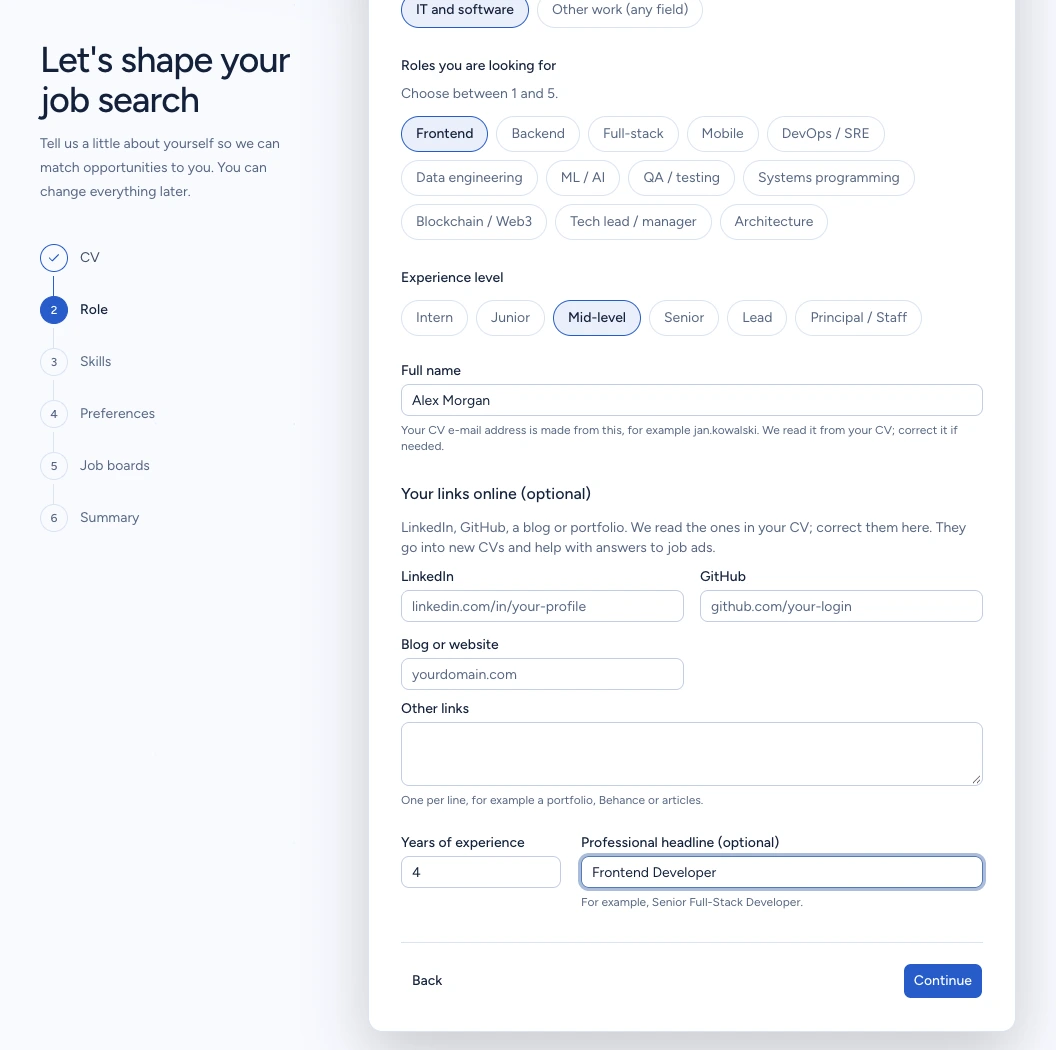
On the same screen, check “Full name”, then enter “Years of experience” as a whole number from 0 to 60. Correct any values that were not read accurately from your CV.
Optionally fill in LinkedIn, GitHub, “Blog or website” and “Other links”. GitHub is available for IT work. Enter one address per line in Other links, or leave these optional fields empty.
Check “Professional headline (optional)”. Our demo uses Alex Morgan, 4 years of experience and “Frontend Developer”. Enter your own details and select “Continue”.
Expected result: “Your skills” opens. The wizard keeps your answers while you move between its screens.
Step 4. Confirm your skills and proficiency
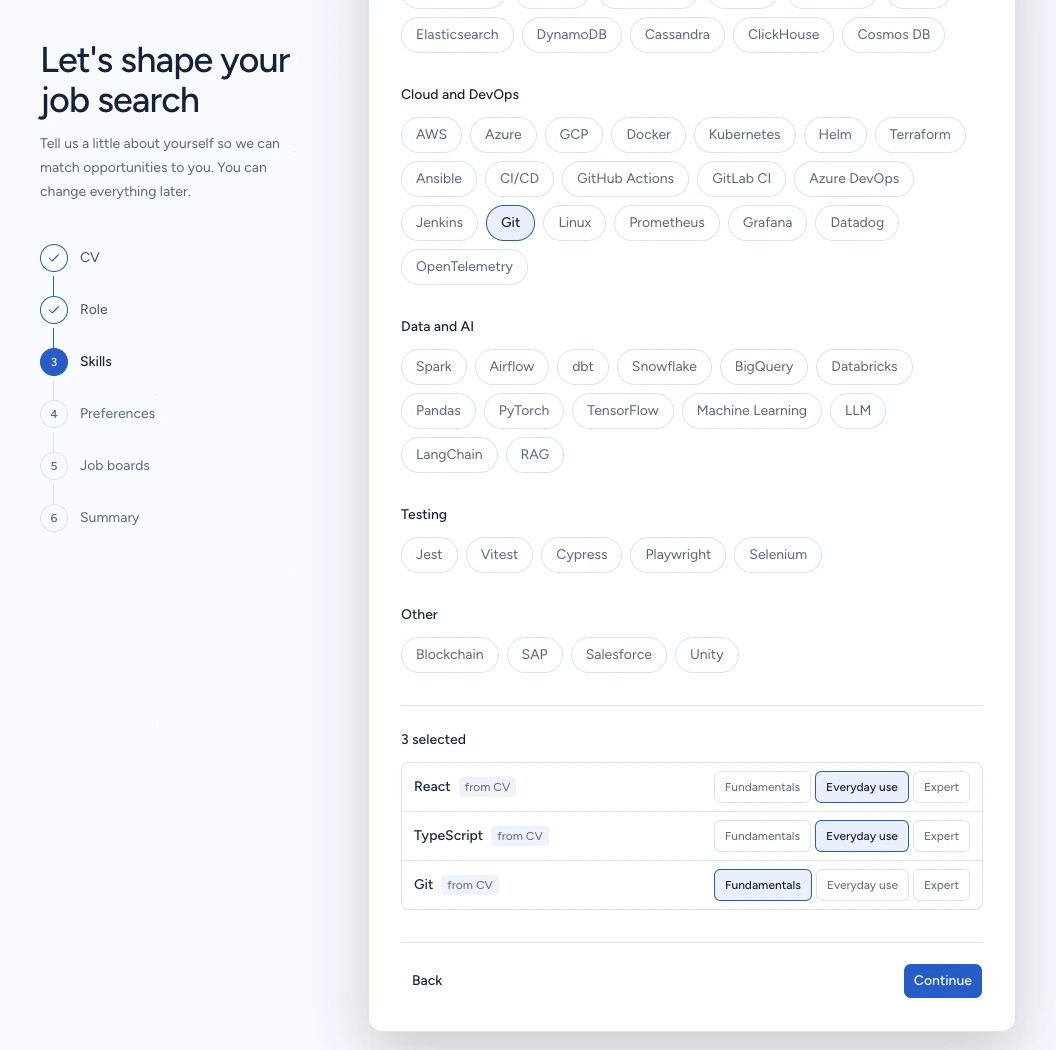
On “Your skills”, review the selected technologies. Use the topic groups to select missing skills and deselect those you do not know. IT work requires at least one skill.
Scroll down to the selected-skills list. For each entry, choose “Fundamentals”, “Everyday use” or “Expert”. The “from CV” label identifies the source of a suggestion; it does not verify your proficiency.
In our example, React and TypeScript use Everyday use, while Git uses Fundamentals. For other fields, you can enter your own skills with Add, or leave the list empty. Select “Continue”.
Expected result: Preferences opens with your reviewed skills list retained.
Step 5. Set your work preferences
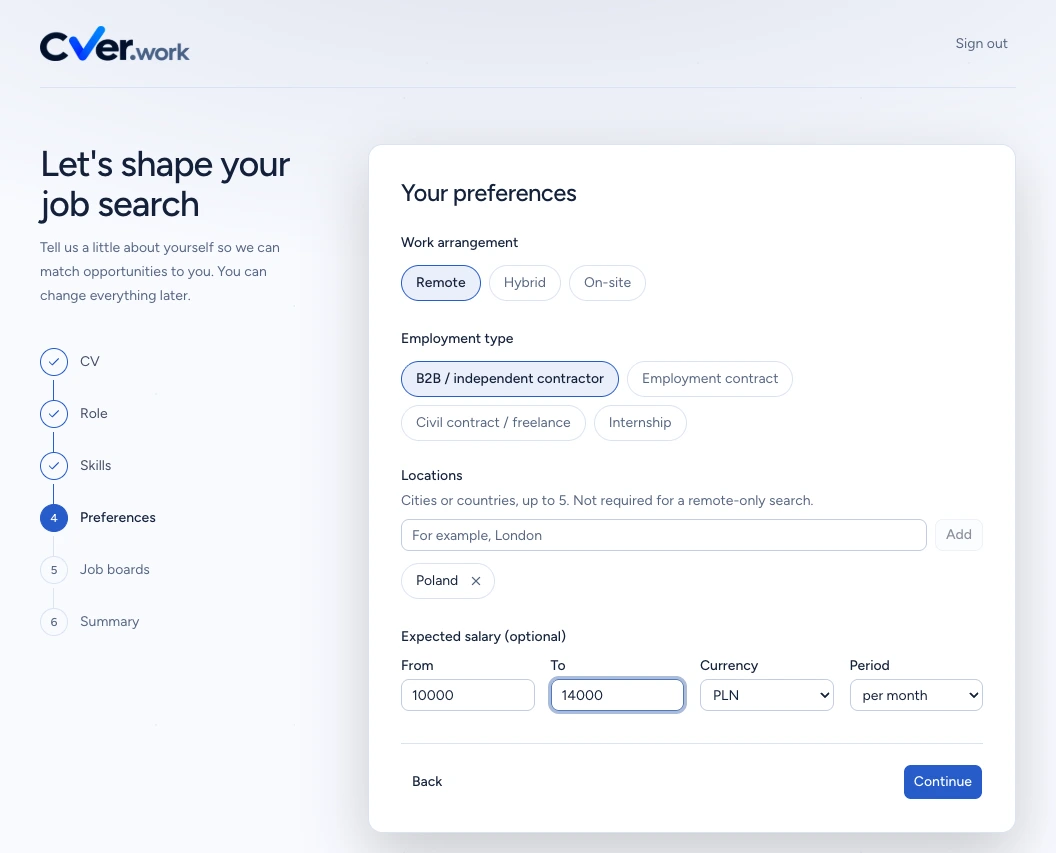
Select at least one “Work arrangement” and one “Employment type”. This example uses “Remote” and “B2B / independent contractor”. You can select more than one option.
To specify places to work, enter a city or country in Locations and select Add. You can add up to five locations. They are optional for a remote-only search.
Under “Expected salary (optional)”, enter “From” and “To”, then check “Currency” and “Period”. Our example is PLN 10,000–14,000 per month. The To amount cannot be lower than From. You can also leave both amounts empty. Select “Continue”.
Expected result: “Where should we look?” opens. Your work preferences remain in the current wizard.
Step 6. Choose your job boards
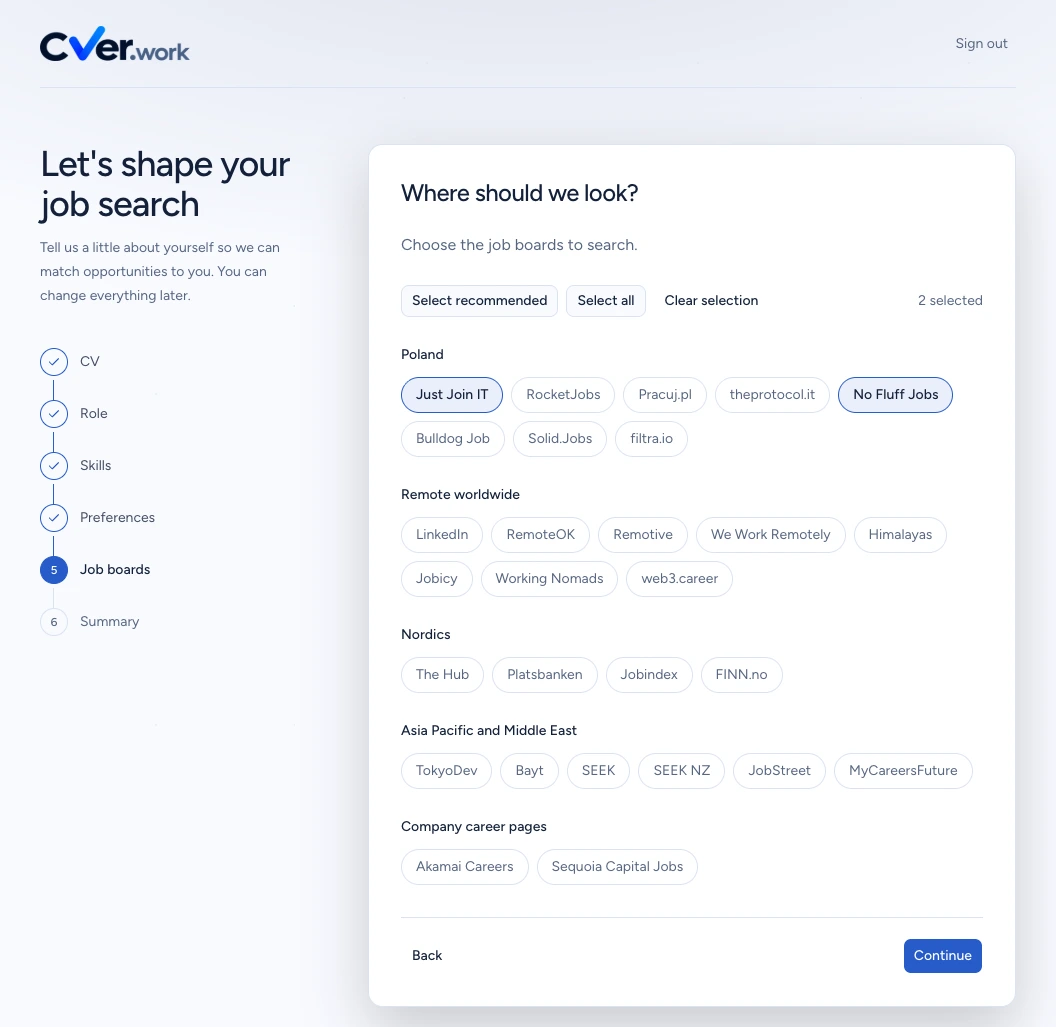
On “Where should we look?”, select the job boards CVER should search. Use “Select recommended” or adjust each source yourself.
In the example, we choose “Clear selection”, then select “Just Join IT” and “No Fluff Jobs”. The counter reads “2 selected”. You need at least one job board to continue.
The list and suggestions depend on your type of work and market. You do not have to choose the sources shown in the recording. Review your selection and select “Continue”.
Expected result: Summary opens with the number of selected job boards and the searches based on them.
Step 7. Review the summary and save
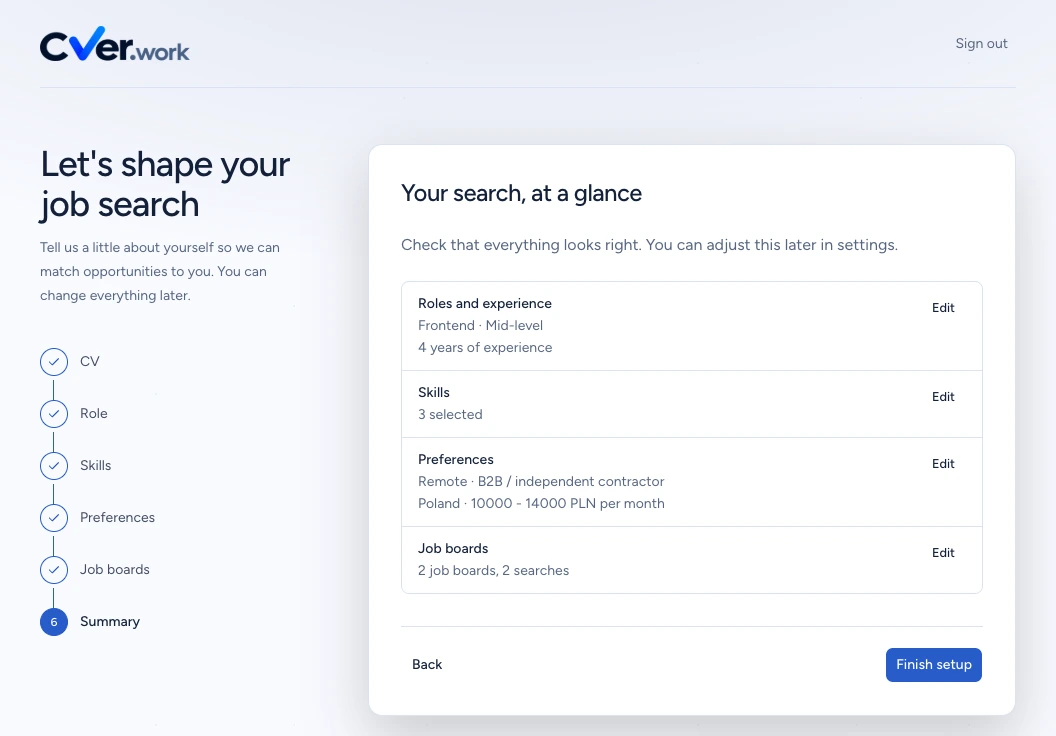
On “Your search, at a glance”, check your role, experience, skill count, work arrangement, salary and job boards. “Edit” beside a section returns to that screen. After making corrections, use Continue to reach the summary again.
When the details are correct, select “Finish setup”. Wait for “Saving...” to disappear and the next page to open. Do not submit again while saving.
Expected result: Your profile is saved. An account without an active subscription opens Subscription; an account with access proceeds to the application.
Check the result
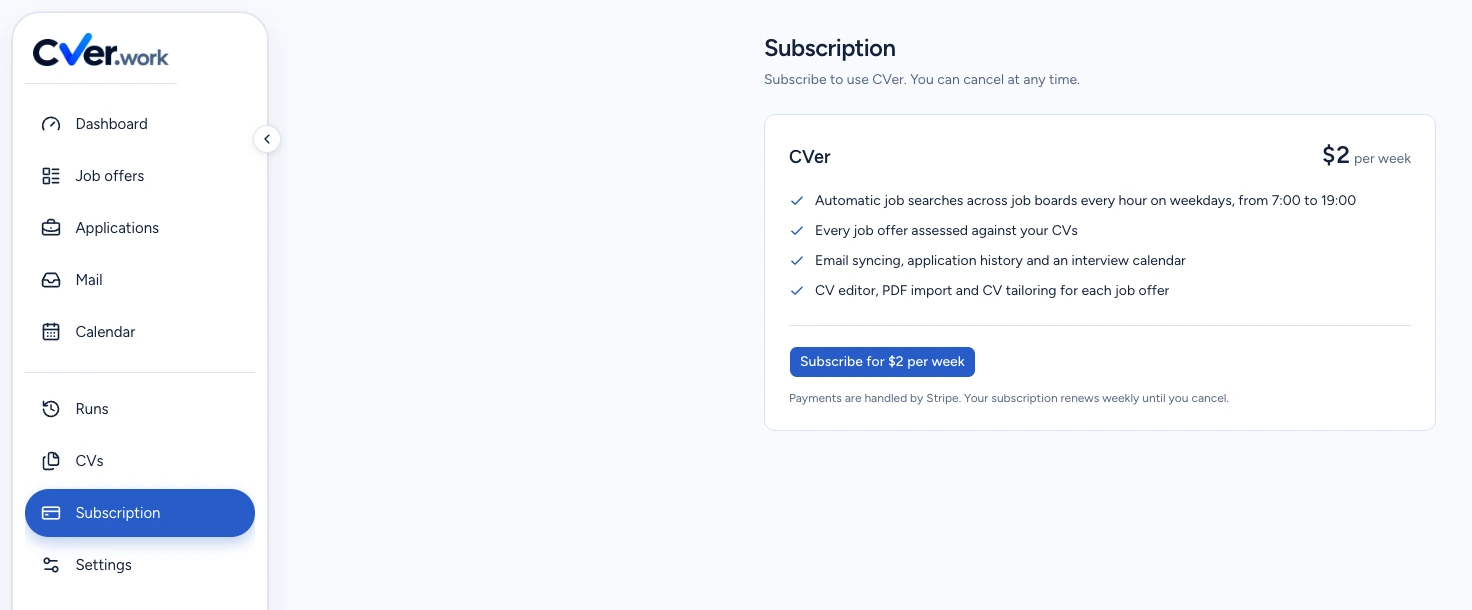
After the wizard finishes, a new account without an active subscription displays Subscription. Choosing a paid plan and completing payment are separate from saving onboarding.
Reload the final page once. The application or subscription page should still open without restarting setup. Make later changes through Settings.
If your account already has active access, saving takes you directly to the application. Completing the wizard does not yet confirm that any job offers have been found.
If something goes wrong
| Symptom | Cause | What to do |
|---|---|---|
| “This file type is not supported.” | The selected file is not a supported PDF or image. | Choose a PDF, JPG, PNG or TIFF, or use Skip and choose manually. Renaming a file extension does not convert its format. |
| “This file is larger than 4 MB.” | The document exceeds the size limit. | Prepare a smaller file or complete setup manually. |
| “The import limit has been reached.” | An account without an active subscription has used its three setup import attempts. Failed attempts also count. | Choose Skip and choose manually. The limit does not prevent you from completing onboarding without a CV. |
| “Enter your full name.” | The required field on Role is empty. | Fill in Full name, then select Continue. |
| “Enter at least one job title you are looking for.” | Other work is selected, but its job-title list is empty. | Enter a name under Job titles you are looking for and confirm it with Add. |
| A message about invalid salary amounts. | For example, To is lower than From. | Correct the range on Preferences. Enter numeric amounts or leave both fields empty. |
| “Select at least one job board.” | No source is selected on Job boards. | Select at least one source, check the counter and select Continue. |
Next steps
- Review your profile settings
After onboarding, use Settings to adjust your details and preferences.
- Explore matched job offers
Continue with the guide to reviewing your search results.