What you will do
Your CV will be saved as a document in CVs. You will return to the library, refresh the page and reopen it to check the imported content.
Before you start
- Access
- Sign in to your own CVER account with completed onboarding and access to the application. When the subscription requirement is enabled, an active entitlement is needed. No administrator role is required.
- Starting point
- Open CVs in the application menu. The recording starts with an empty library; the Upload CV button also works when the library already contains documents.
- File
- Prepare a PDF with selectable text, no larger than 4 MB. Check that you can select and copy its text before uploading. Keep your original file. The example uses a fictional Alex Morgan CV.
- Scope
- This guide covers a text PDF. HTML uses a different import path. Scans and images depend on scan recognition being available and are not demonstrated here. Reading time and the resulting document can vary by file and service configuration.
- Profile and skills
- Importing can fill missing profile details and refresh skills derived from a CV, including removing older CV-derived skills. Manually added skills are retained. Review Settings afterwards; importing is not only adding a library entry.
- Time
- Allow a few minutes to upload and review your CV. The video is about 50 seconds long and uses a small synthetic PDF.
Watch the complete process
Silent recording with English captions. Enable captions in the player's menu.
Step 1. Choose your PDF in the CV library
In CVs, select Upload CV. In the file chooser, select your PDF and confirm the selection.
Import starts immediately after you choose the file; there is no separate submit step. While it is being read, the button shows Importing CV…. Wait for the result instead of uploading again.
After a successful import, a CV imported message includes the saved filename and CVER opens Document. The filename and title may differ from those of your original PDF.
Expected result: Document opens for the saved CV after reading finishes.

Step 2. Check the imported document
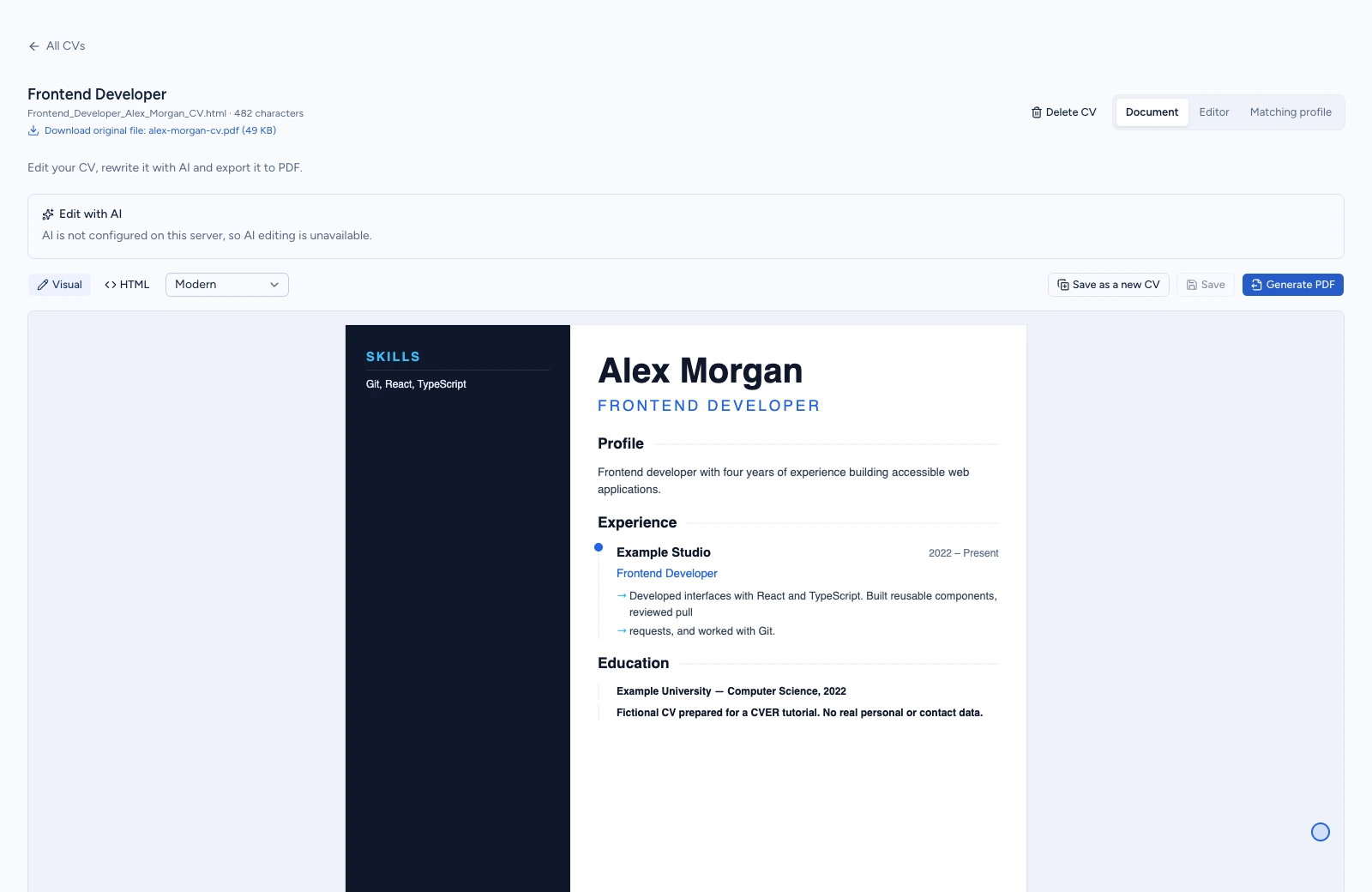
In Document, check your name, contact details, work experience, education and skills. Scroll through the document and compare it with your original PDF.
CVER builds a document from the content it reads. Do not expect the PDF's original layout, fonts or section placement to be reproduced exactly. Reading a file does not verify the accuracy of its content.
The recording uses local text extraction without AI or scan recognition. With different services enabled, the imported structure can differ. Review missing or incorrectly read information before using the CV.
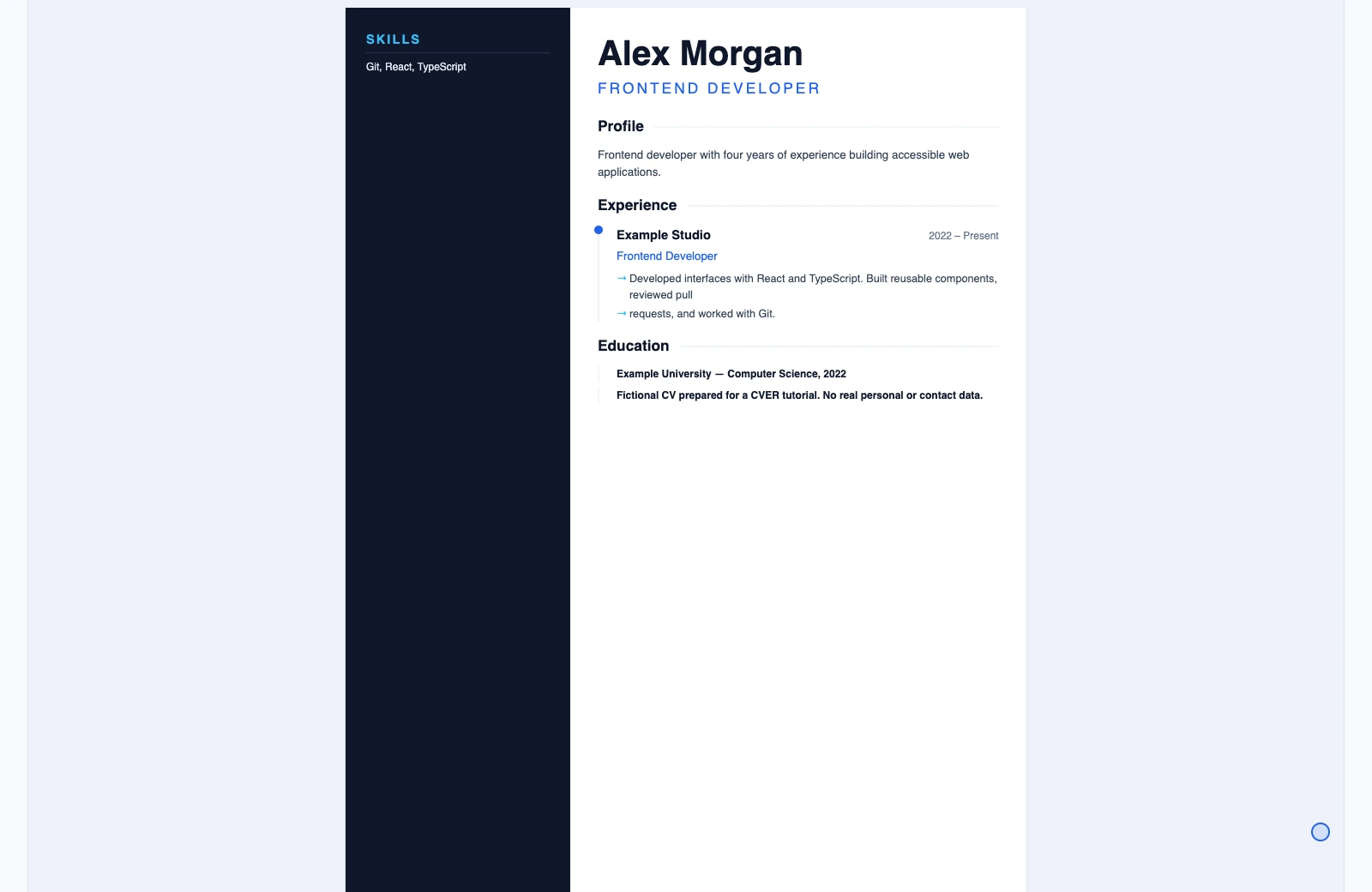
Expected result: The imported content is visible in Document. In this example the title is Frontend Developer and the document contains Alex Morgan's details.
Step 3. Find the saved CV in the library
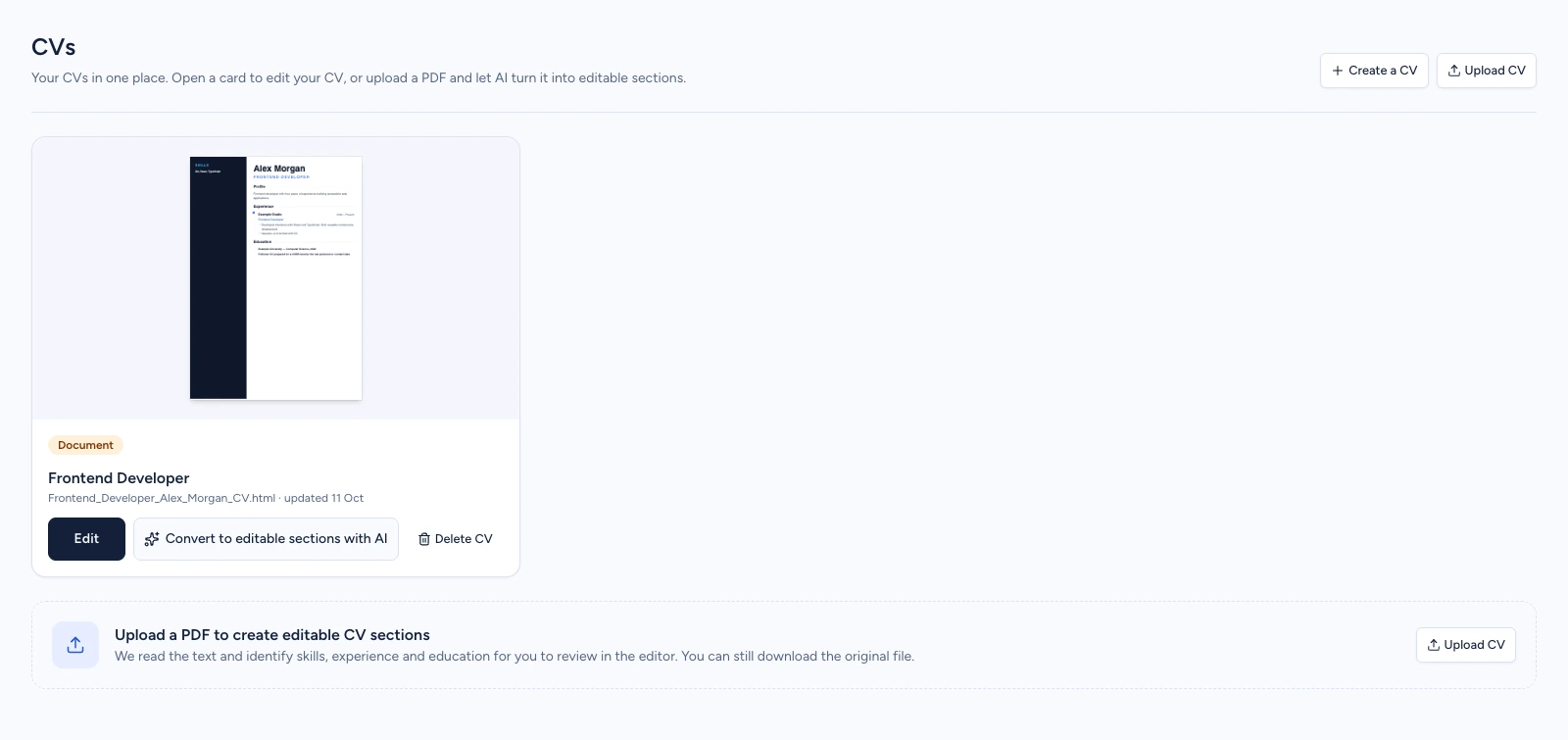
Select All CVs to return to the library. Find the card for the document you just imported.
Refresh the library page once. The card should still be present. Select Edit on that card to reopen the document.
In the recording, the card is called Frontend Developer. Use the title of your own document rather than looking for that example name.
Expected result: The saved CV remains in the library after a refresh and opens again from its card.
Check the result
After refreshing and reopening the card with Edit, check that Document still contains the CV you uploaded. This confirms the library entry and readable content, not that every field was extracted correctly.
Open Settings and review your profile and skills too. Missing profile values can be filled; existing values are not replaced by this import. CV-derived skills can change, while manually added skills are retained. These updates may fail independently of saving the document.
Keep the original PDF yourself. Saving the document does not guarantee that storing or downloading the original file succeeded. This guide does not test original-file downloads.
If something goes wrong
| Symptom | Cause | What to do |
|---|---|---|
| Unsupported file type. Upload PDF, JPG, PNG, TIFF or HTML. | The selected file does not contain a supported file format, even if its name ends in .pdf. | Export a genuine PDF with selectable text and try that file. Renaming an extension does not convert the file. |
| The file is larger than 4 MB. | The uploaded file exceeds the size limit. | Prepare a smaller PDF while retaining readable, selectable text, then select it again. |
| No text found in the file. Try a clearer scan or a PDF with selectable text. | There is not enough readable text in the PDF. This was reproduced with an empty PDF and scan recognition disabled. | Check that you can copy text from the original. Export a text PDF from your source document instead of uploading an empty or image-only PDF. |
| Scan recognition is temporarily unavailable. Upload a PDF with selectable text or an HTML file. | An image was selected while scan recognition was unavailable. | For this procedure, choose a PDF with selectable text instead. Simply saving an image inside a PDF does not add readable text. |
Next steps
- Review profile and skills
Check the Settings values after importing your CV.
- Tailor a CV to an offer
Read the separate guide before preparing a job-specific version.