What you will do
Save a reviewed CV version with the selected offer and keep a PDF with the same content on your device. Follow the process from choosing a document through an AI suggestion and manual edits to checking the downloaded file.
Before you start
- Access
- Sign in to an account with completed onboarding and access to the application. AI features require an active subscription when paid access is enforced, and a configured, available AI assistant.
- Materials
- Have a saved CV with an editable document and an offer with a job description. Check that the source CV has current employers, dates, responsibilities, technologies and contact details.
- Starting point
- Open Job offers from the menu. The example starts with an offer that has no CV version of its own yet. If a version already exists, open its CV tab to review it or run another adjustment.
- What saving affects
- The first adjustment creates a separate version with the offer. Later saves can carry factual changes to other CVs through the On save switch. This walkthrough turns it off before saving edits.
- Video example
- Alex Morgan’s CV and the Aster Labs offer are fictional. The AI response is a prepared demonstration example. The recording shows it in the current interface, with actual saving and PDF export; it does not test a live AI provider.
- Time
- Allow around 5–10 minutes, depending on your CV’s length and the changes needed. AI response time can differ from the recording.
Watch the complete process
Silent recording with English captions. Enable captions in the player's menu.
Step 1. Open the offer and its CV tab
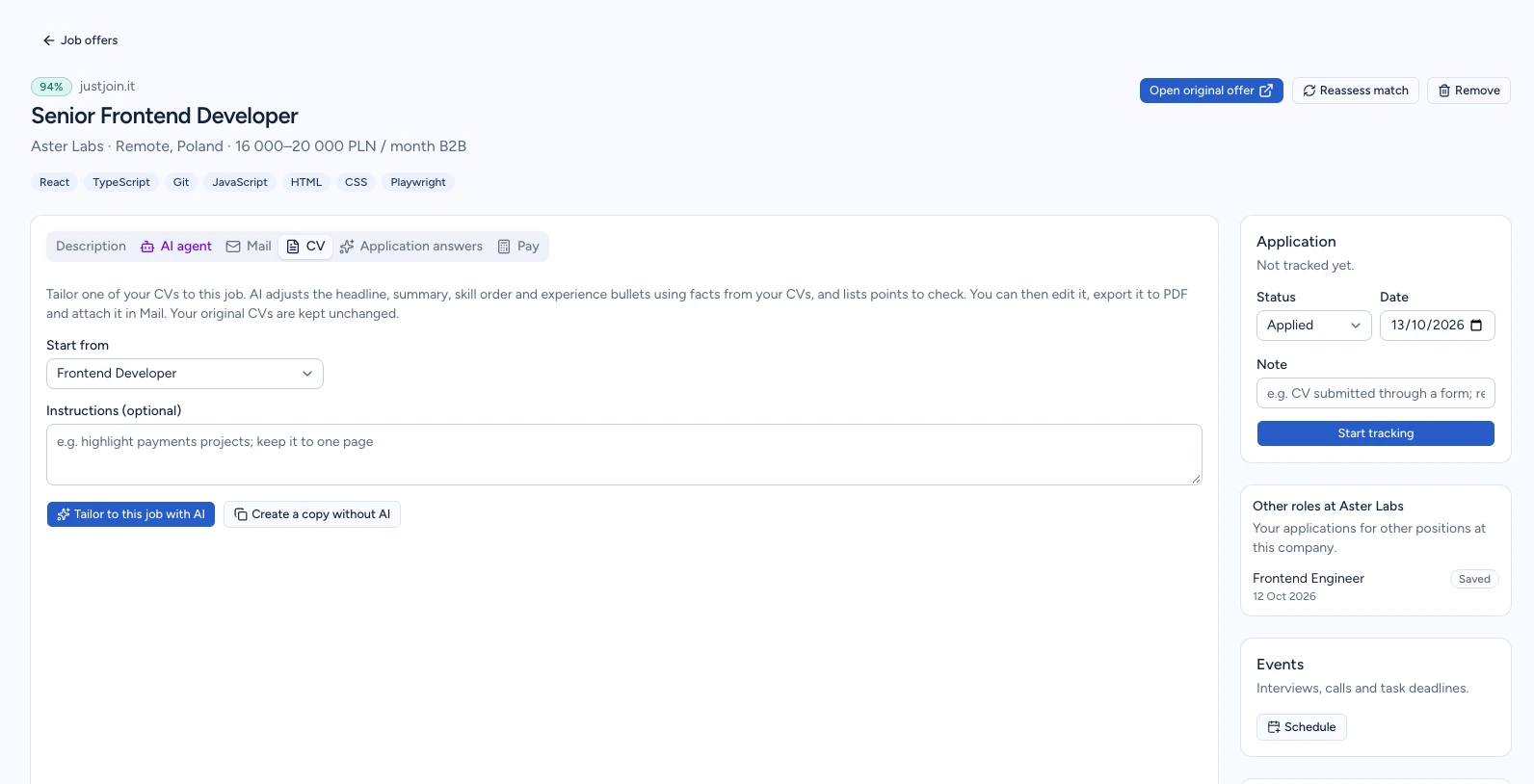
In Job offers, click the title of the role you want. In Companies view, first expand the employer’s group, for example with Expand all. Details open in a new tab. Read Description, then select CV.
Check the required experience, technologies and responsibilities. This description is the target for the adjustment. The example uses Senior Frontend Developer at Aster Labs.
If you see a message that no CVs are available, add a document in CVs and return to the offer.
Expected result: The tailoring form shows Start from and an available base document.
Step 2. Choose your CV and describe the adjustment
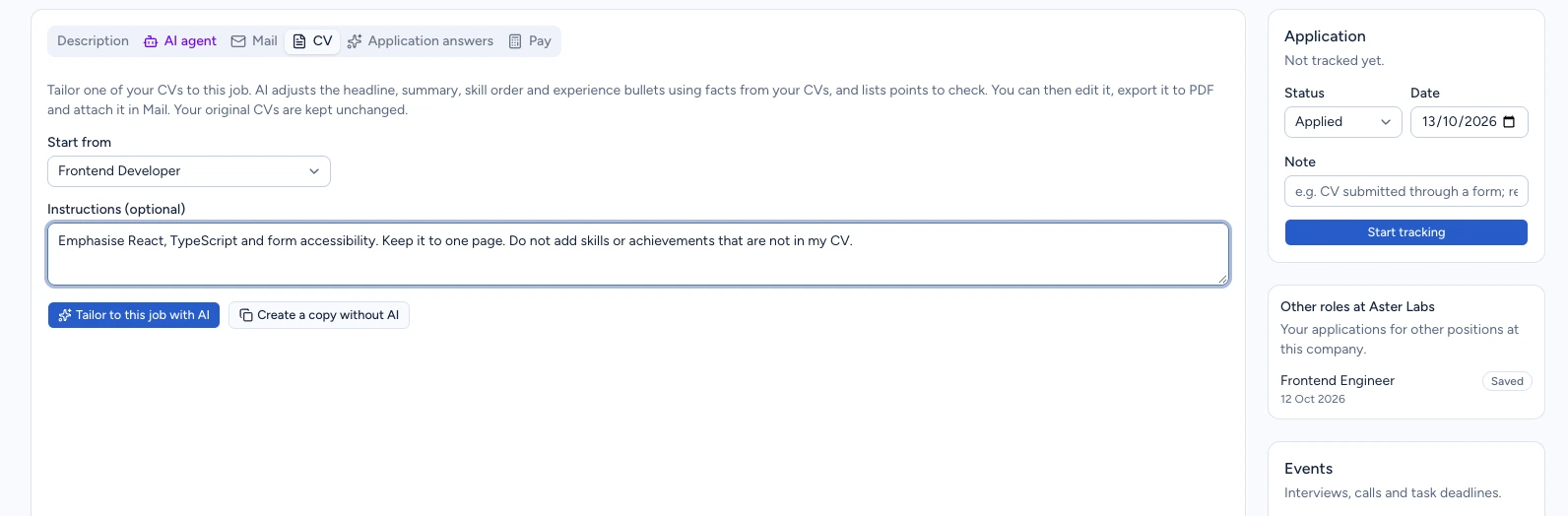
Under Start from, select the document that best describes your experience for this role. Use Instructions (optional) to say what to emphasise or how to shorten it.
Example request: “Emphasise React, TypeScript and form accessibility. Keep it to one page. Do not add skills or achievements that are not in my CV.” Adapt it to your own experience and the advert.
You can leave the instructions empty: CVER will use the job description. Tailoring can change the headline, summary, skill order and experience bullets. Facts from your other CV versions may also provide context.
Expected result: The right CV is selected and the instructions describe the changes you want for this offer.
Step 3. Run the adjustment and read the notes
Click Tailor to this job with AI. Wait while CVER shows Reading CV and Rewriting CV. Once a complete response arrives, CVER saves the first version with this offer and opens the editor.
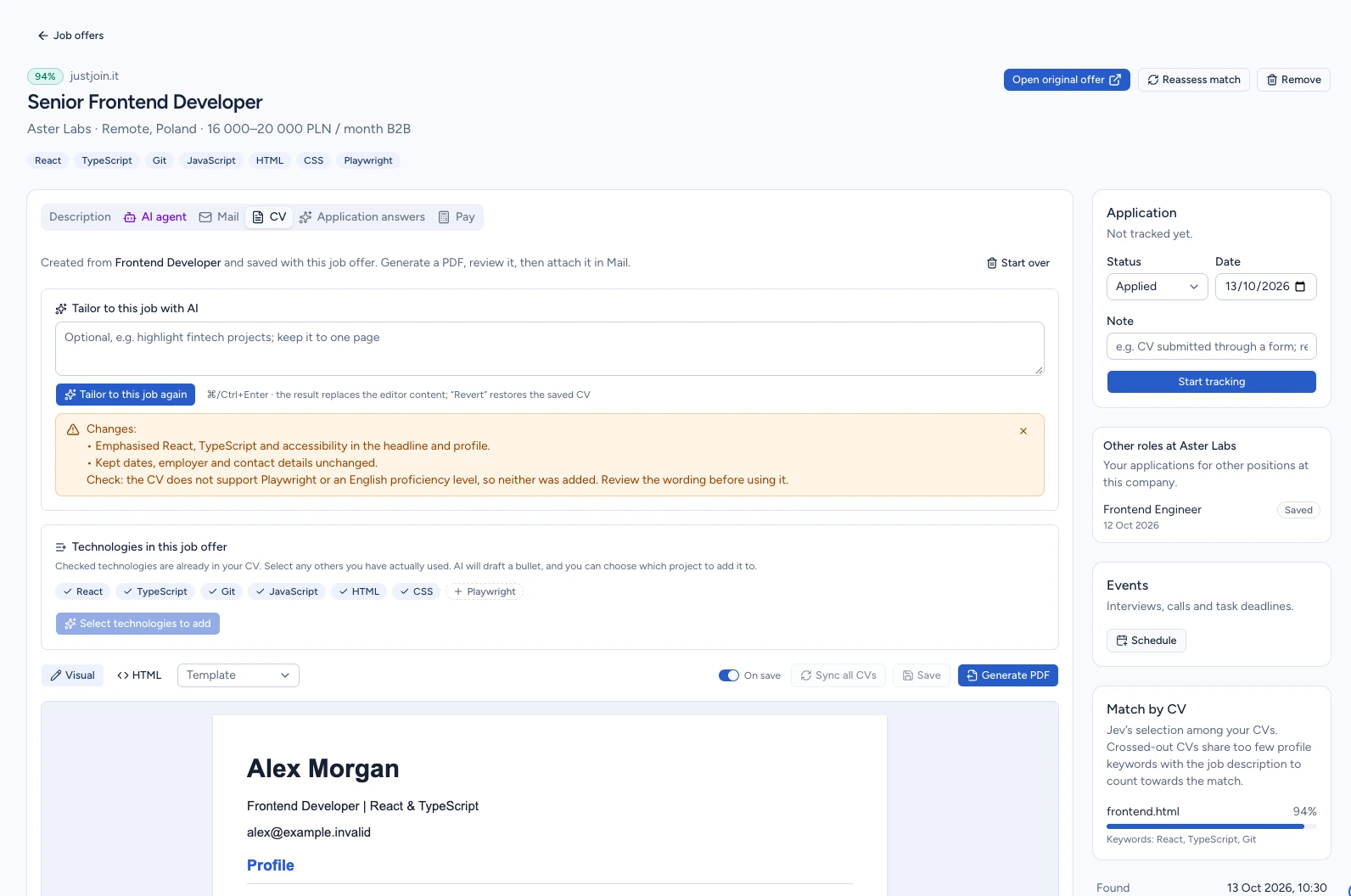
Read the notes below the AI field. In this example they identify the revised profile and the lack of evidence for Playwright and an English proficiency level. Keep these points in mind while reviewing the document.
Stop generating interrupts the response. For an existing CV, choose Tailor to this job again, or enter a further request and use Edit with AI. This subsequent result replaces the editor content and needs saving; Revert restores the last saved version.
Expected result: The document based on your selected CV is visible, together with points to check. Its first version is saved with the offer.
Step 4. Check the content against your experience
Scroll through the CV preview. Review the headline, summary, employers, roles, dates, your contribution to projects and skills. Verify every achievement, figure and contact detail as well.
The example retains Example Studio, the dates 2022–2026 and the source document’s contact email. The profile gives more emphasis to React, TypeScript and accessibility, which were already in the source CV.
The advert mentions Playwright, but the CV does not establish that the candidate has used it. Only add a technology if you have that experience. Under Technologies in this job offer, select tools you have actually used. Also check whether a job title such as Senior reflects your experience.
Expected result: You know which wording to keep and which claims need correcting or removing.
Step 5. Edit this CV version
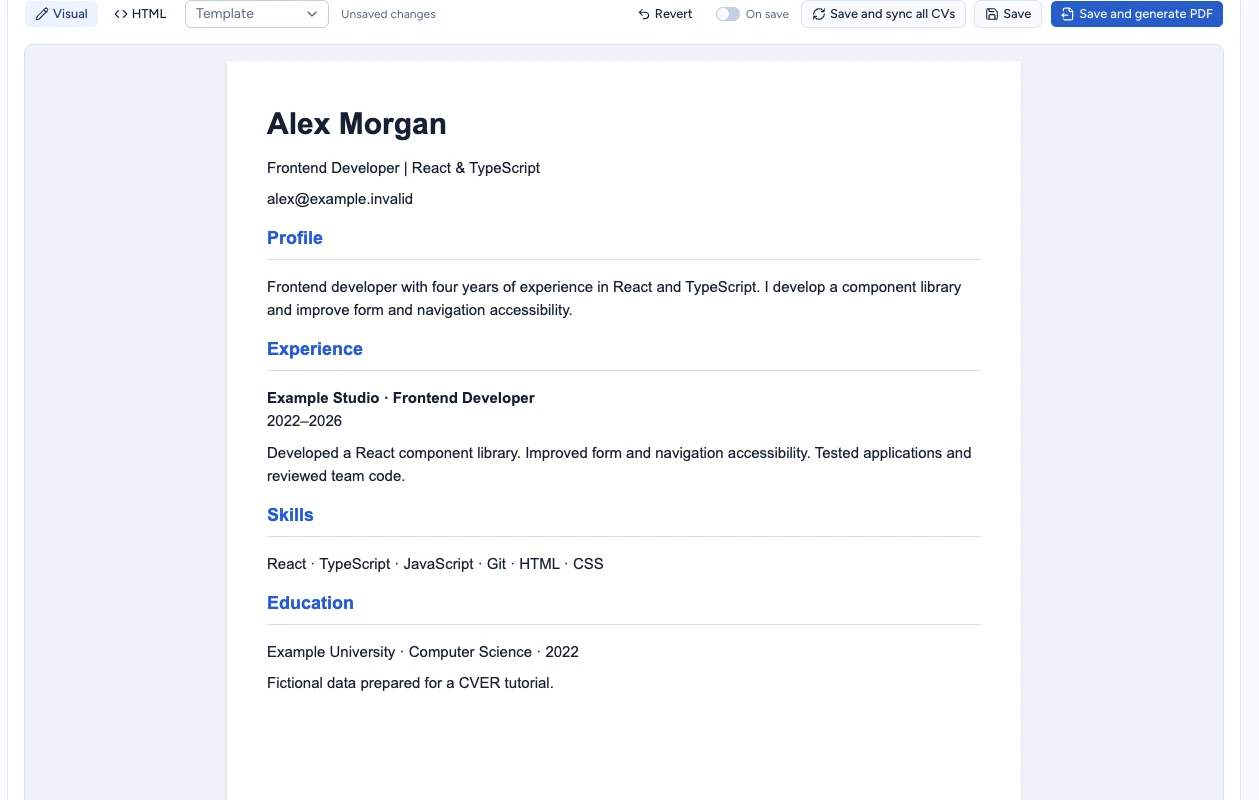
If the edits should apply only to this offer’s CV, turn off On save in the editor toolbar. Select Visual, click the text in the preview and edit it. The example shortens the profile to two sentences.
The revised profile reads: “Frontend developer with four years of experience in React and TypeScript. I develop a component library and improve form and navigation accessibility.” Use wording supported by your own experience.
When On save is enabled, AI can carry factual changes such as dates, roles and technologies to other CVs. The separate Save and sync all CVs button also starts that update. Template for all CVs changes the design across documents; Visual view is enough for editing the text.
Expected result: The preview contains your edits and the toolbar shows Unsaved changes. On save is off in the example.
Step 6. Save the edits and reopen the CV
Click Save and wait for the operation to finish. Refresh the page, select CV again and find the paragraph you edited.
To discard unsaved edits, use Revert before saving. Start over is a different action: after confirmation, it removes the entire CV version for this offer.
Check On save again after saving or reopening the editor. It may return to enabled; turn it off before your next operation if you still want to work only on this copy.
Expected result: Your revised profile remains in the CV after refreshing. The document is saved with the same offer.
Step 7. Generate and download the current PDF
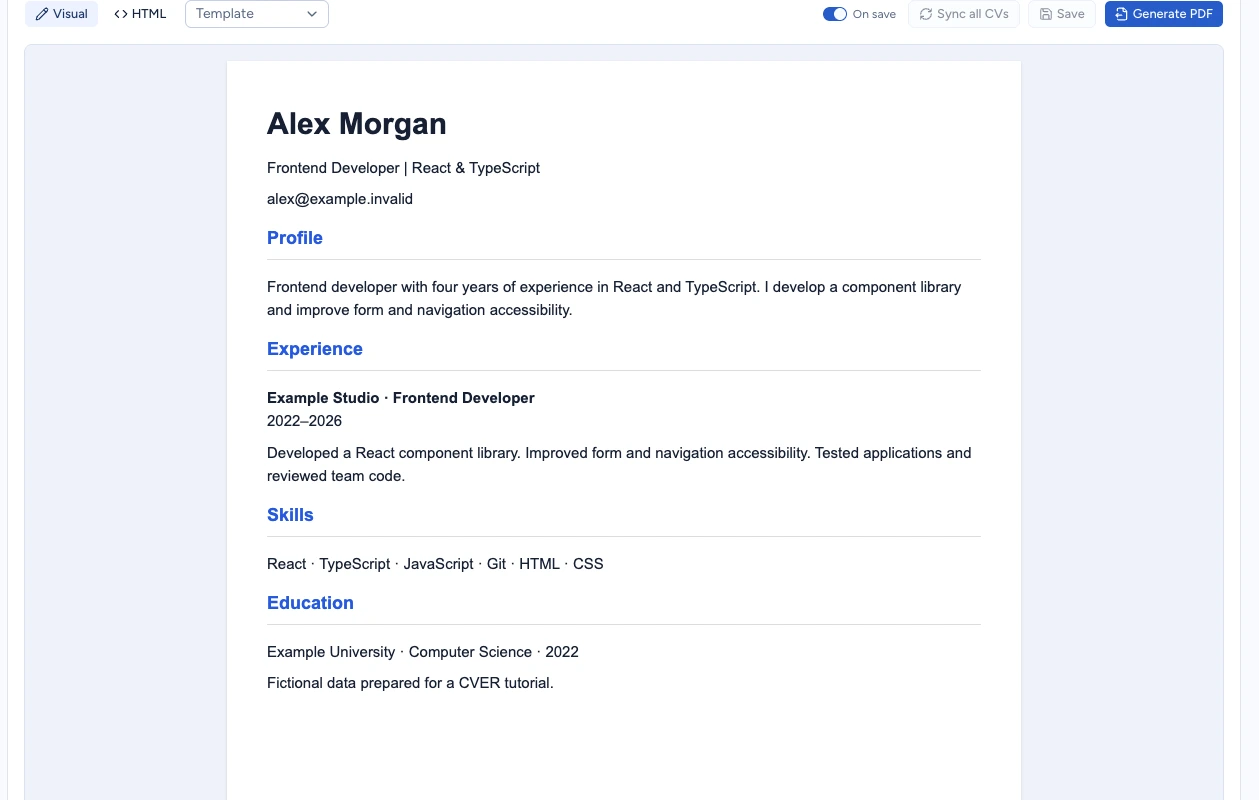
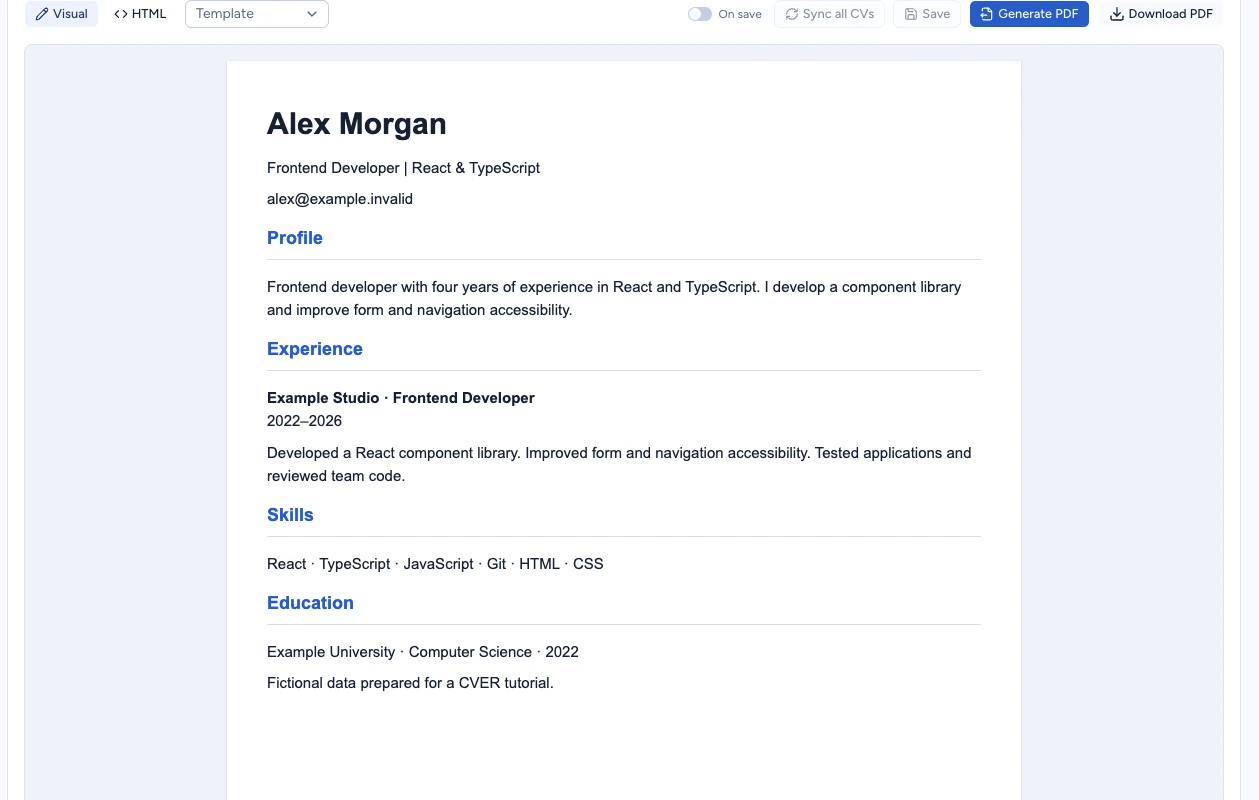
Check On save, then click Generate PDF. Wait for Generating PDF to finish and choose Download PDF. Open the downloaded file in your browser or PDF reader.
If the editor contains unsaved edits, the button is called Save and generate PDF. It saves the current content and creates the file from it.
Generate and download a new PDF after each further content change. A file already downloaded to your device does not update automatically. Saving changed CV content removes the offer’s previous PDF until you generate it again.
Expected result: Your device has a PDF containing the current saved content. Download PDF is available with the offer.
Check the result
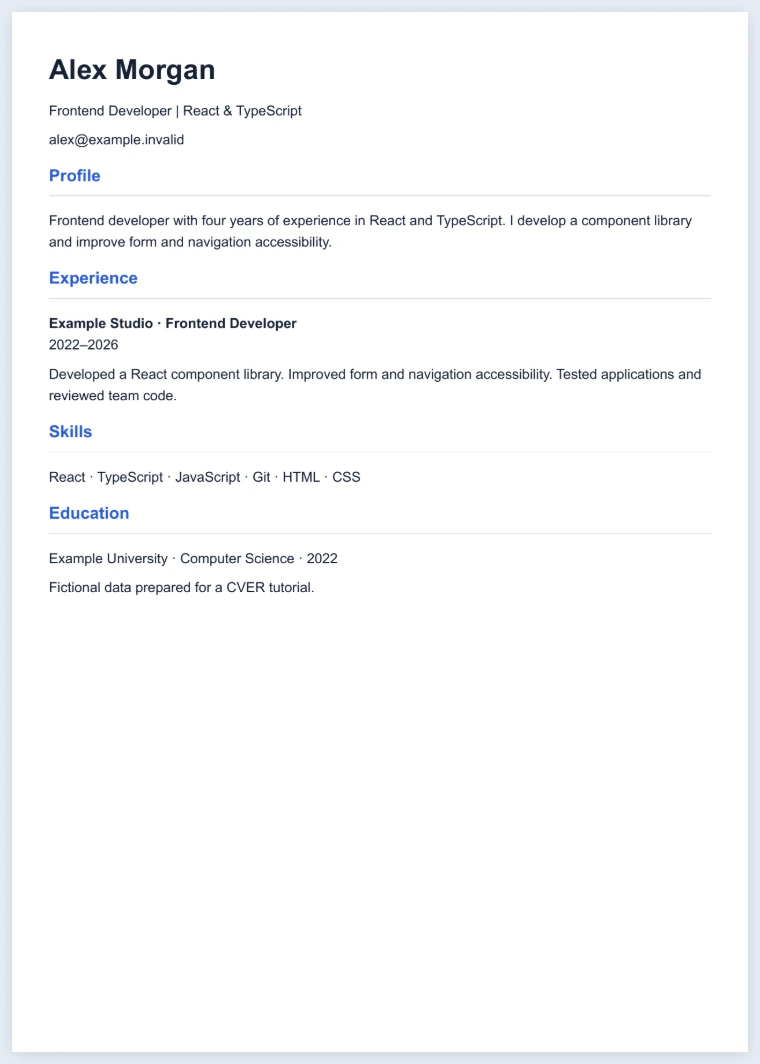
Open the downloaded PDF and check every page: complete content, page breaks, legibility, special characters, dates and contact details. If the document contains clickable links, check their destinations too. Compare your edited paragraph with the version saved in the offer.
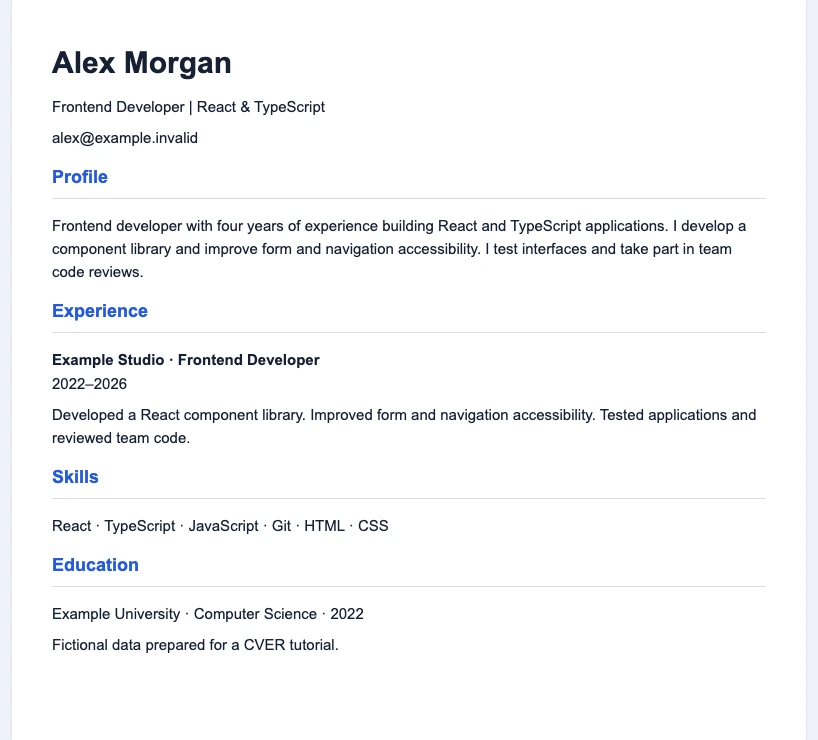
The example PDF has one page and the manually revised two-sentence profile. The screenshot is a preview of the actual downloaded file. If you find a problem, edit the CV, then generate and download the PDF again.
Return to the same offer’s CV tab to continue working. Downloading a PDF does not send an application or change its status. Decide separately how to submit the reviewed document to the employer.
If something goes wrong
| Symptom | Cause | What to do |
|---|---|---|
| The AI response did not contain a complete CV. Please try again. | The response did not include a complete document. The first CV version was not created. | Check your base document and try tailoring again. If the problem persists, try later. The end of a waiting indicator alone does not confirm that a CV was saved. |
| There is no new CV version after using Stop generating. | The response was interrupted before a complete document arrived. | Start tailoring again and wait for the editor to open. If you were adjusting an existing CV, check its previous content. |
| The PDF is older than the CV. Generate it again before sending. | The editor content changed after the PDF was created. | Review your edits and the On save setting. Use Save and generate PDF, then download the new file. To discard unsaved edits, Revert restores the saved CV. |
| Download PDF disappeared after I saved changes. | Saving different content invalidated the previous file associated with the offer. | Click Generate PDF. When it finishes, download and check the new file. |
Next steps
- Explore the other Job offers tools
Review filters, statuses, notes and tools available with an offer.
- Add another CV
Prepare a different base document in your CV library.
- Track applications
Record actual recruitment stages and employer replies.