What you will do
Choose an offer, save a custom filter and create a CV copy. Add a status, note and deadline, and discover the tools for application answers, mail, pay comparisons and applying with an AI agent.
Before you start
- Access
- Sign in to a CVER account with completed onboarding and access to the application. An active entitlement is needed when a subscription is required.
- Starting point
- Select Job offers in the navigation. This walkthrough starts with vacancies already in the list. If your list is empty, check your CV, profile and sources in Settings. Searches run automatically.
- CV
- Have at least one CV in your library. You will use it as the base document for the offer and as a reference for application answers.
- Available tools
- Mail requires a connected mailbox. AI tailoring, answer generation and the AI agent depend on service availability. The video shows where to find them; we create the CV copy with Create a copy without AI.
- Example data
- The companies, vacancies, CV, pay and exchange rates in the recording are demonstration data, not vacancies to apply to. The agent screen and question field are shown before starting those tools. No application or email is sent.
- Time
- Allow a few minutes to explore the workspace and save an offer. Preparing a final document, generating AI answers and submitting an application can take longer.
Watch the complete process
Silent recording with English captions. Enable captions in the player's menu.
Step 1. Browse offers and their match results
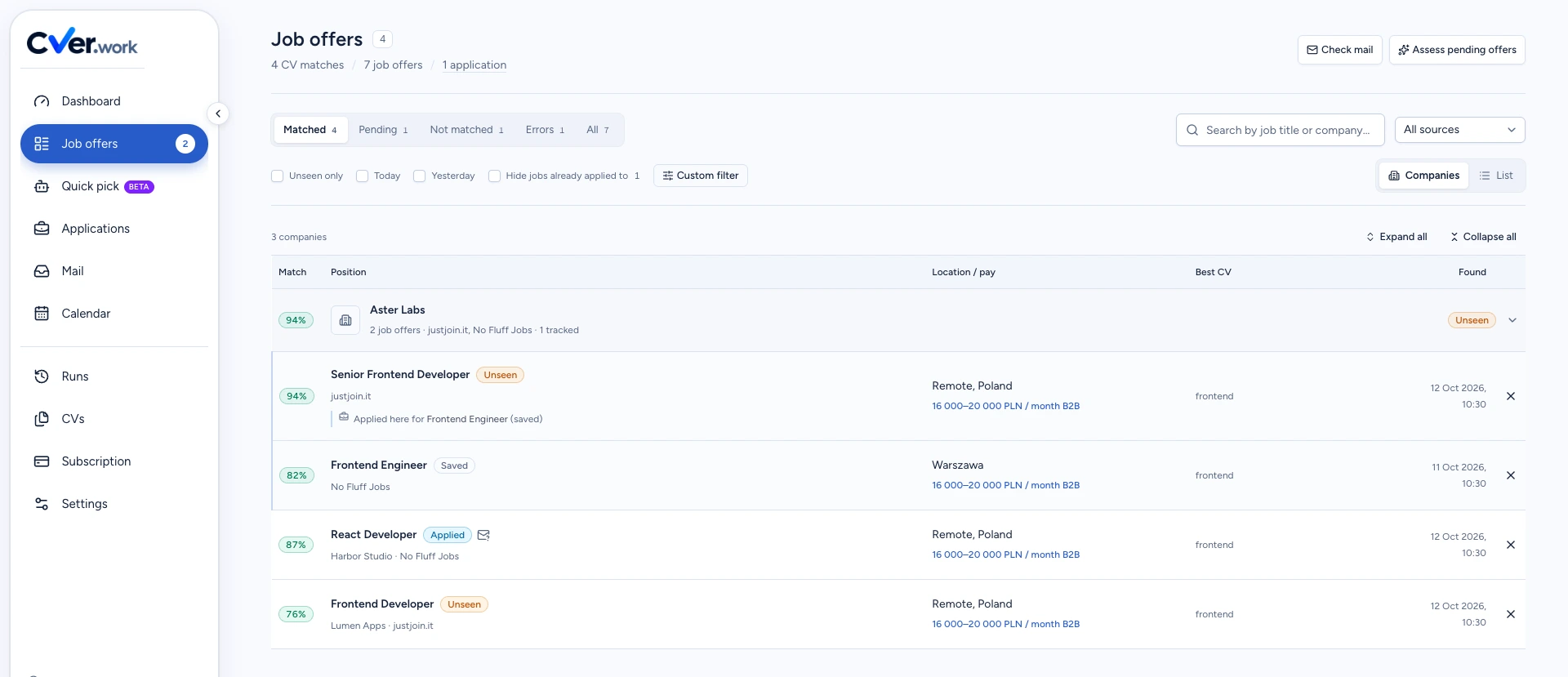
Open Job offers in the navigation and start with Matched. In the Companies layout, expand an employer or choose Expand all to see its individual roles.
Pending, Not matched, Errors and All show the other assessment results. Pending offers await an assessment; Errors need the problem to be checked. Not matched includes offers excluded by the assessment or filters, as well as offers you removed.
These tabs do not describe an employer's response. Track recruitment progress separately with the application status. Assess pending offers starts an assessment of offers waiting for a result and requires the assessment service to be available.
Expected result: You can see roles, employers, match scores, locations, pay and the selected CVs.
Step 2. Narrow down the list
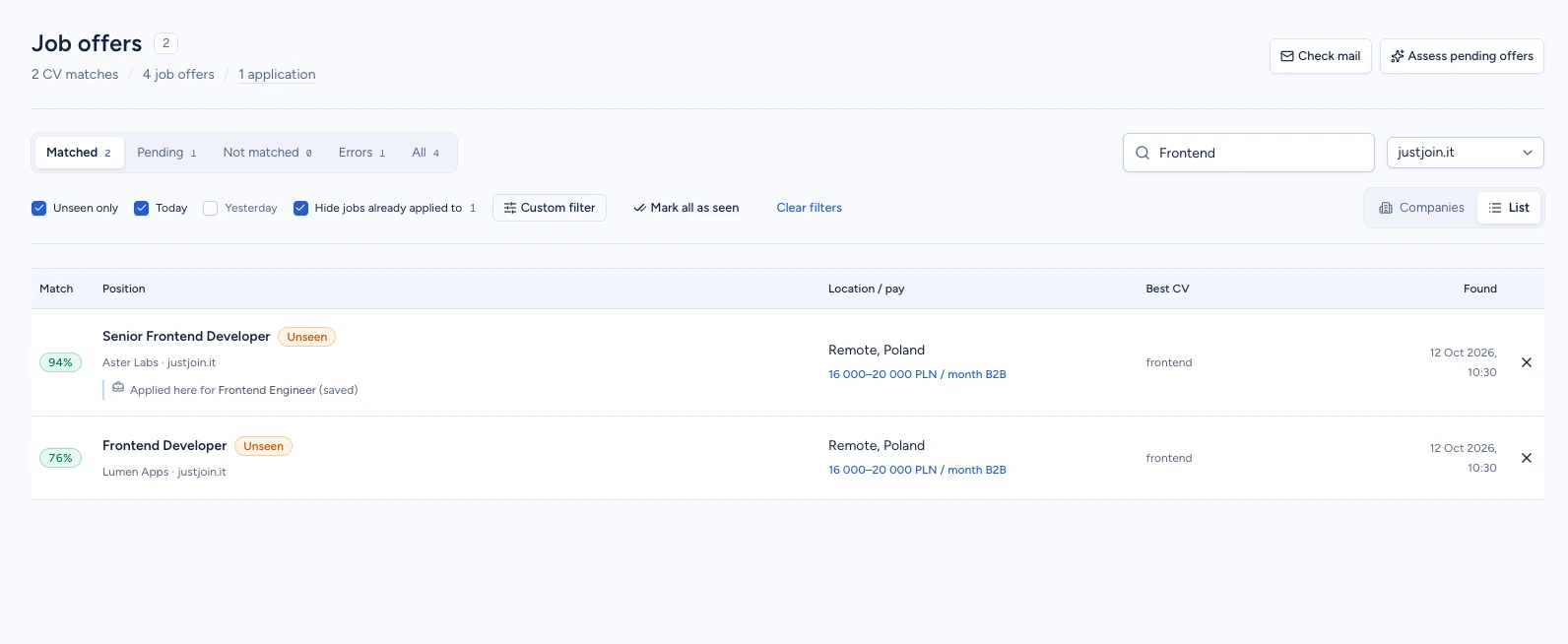
Enter part of a job title or company name in the search field. Use Source to select a job board. Switch to List if you prefer one vacancy per row.
Unseen only shows offers you have not opened. Today and Yesterday refer to when an offer was found. Hide jobs already applied to excludes offers with an application or later status; a Saved offer remains visible.
Conditions work together. CVER remembers the view in this browser. Clear filters removes the conditions but keeps the selected assessment tab, so switch to All too if needed. With Unseen only enabled, Mark all as seen becomes available. It marks every unseen offer, not just the rows currently visible.
Expected result: The list shows offers matching your conditions. The video uses unseen Frontend roles from justjoin.it found today.
Step 3. Save a custom filter
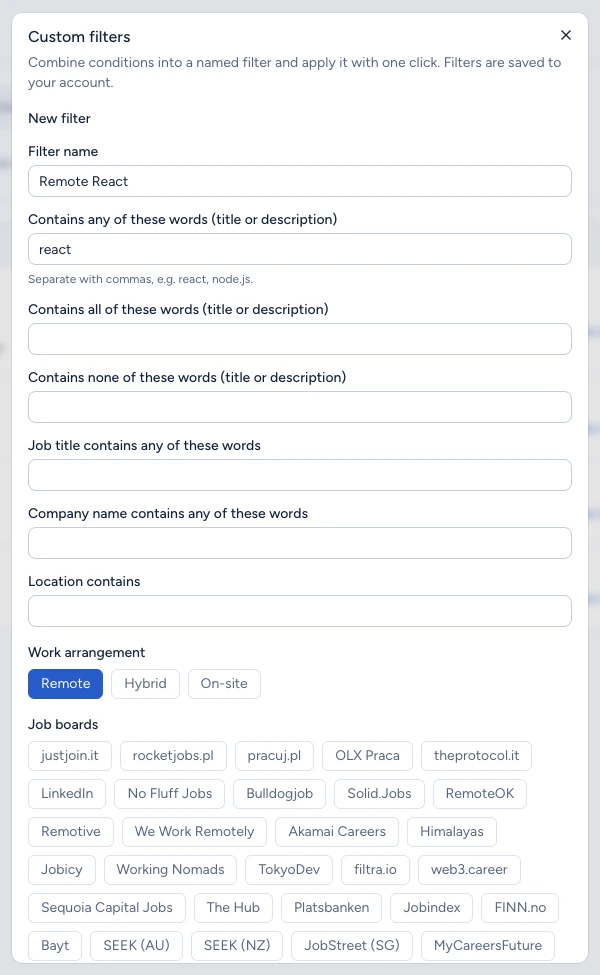
Clear the earlier conditions and select Custom filter. Enter a name such as Remote React. Put react in Contains any of these words and select Remote under Work arrangement. Scroll down and choose Save filter.
You can also set required or excluded words, job titles, employers, location, job boards, a minimum score and whether pay must be listed. Separate words with commas. A filter needs a name and at least one condition.
A new filter is saved to your account and applied immediately. Its name appears beside the other switches. Click it to turn the filter off or on. Reopen Custom filter to edit or delete it. Several active filters narrow the results together.
Expected result: Remote React is saved, selected and still available after refreshing the page.
Step 4. Open the details and review the match
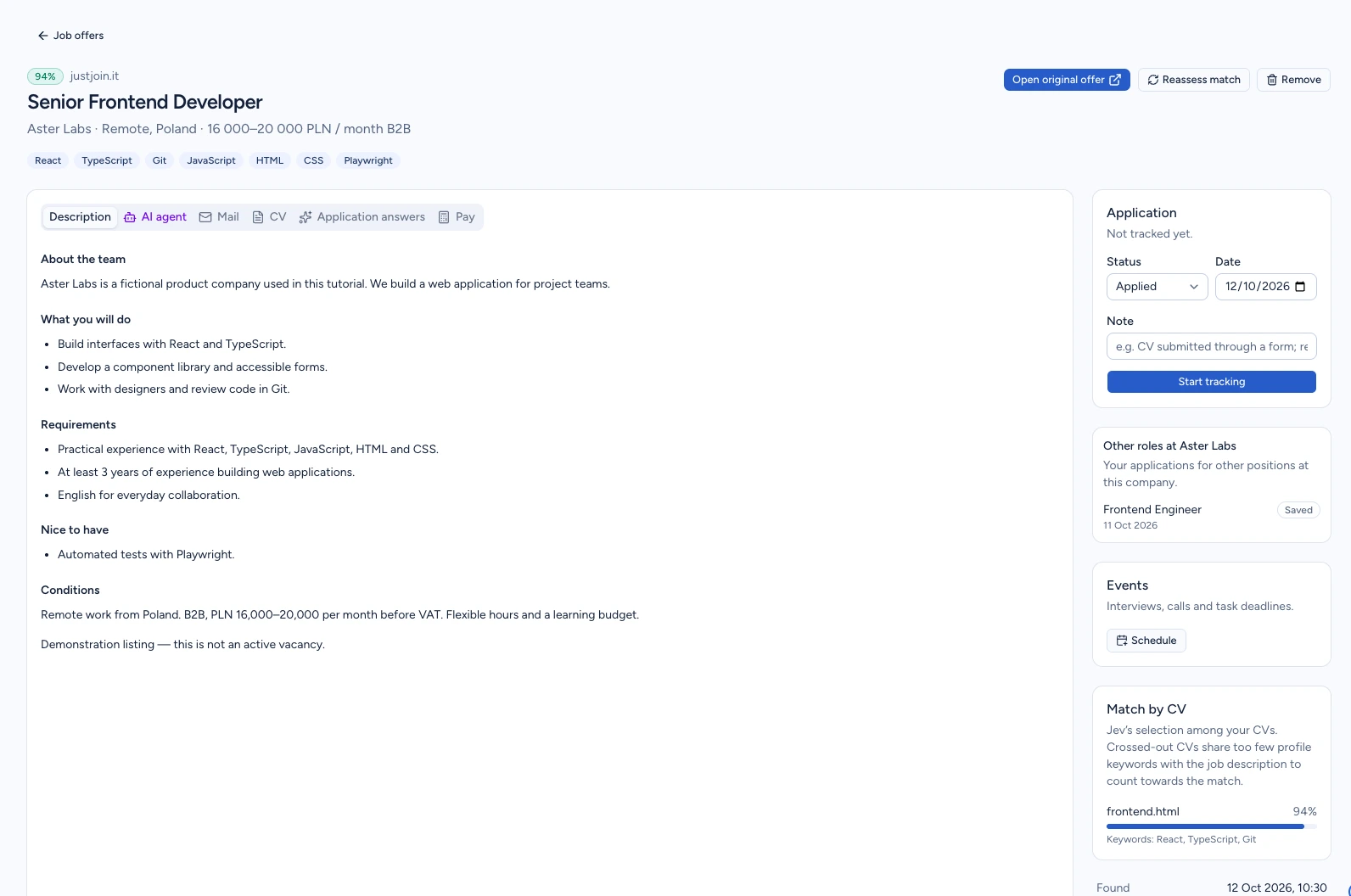
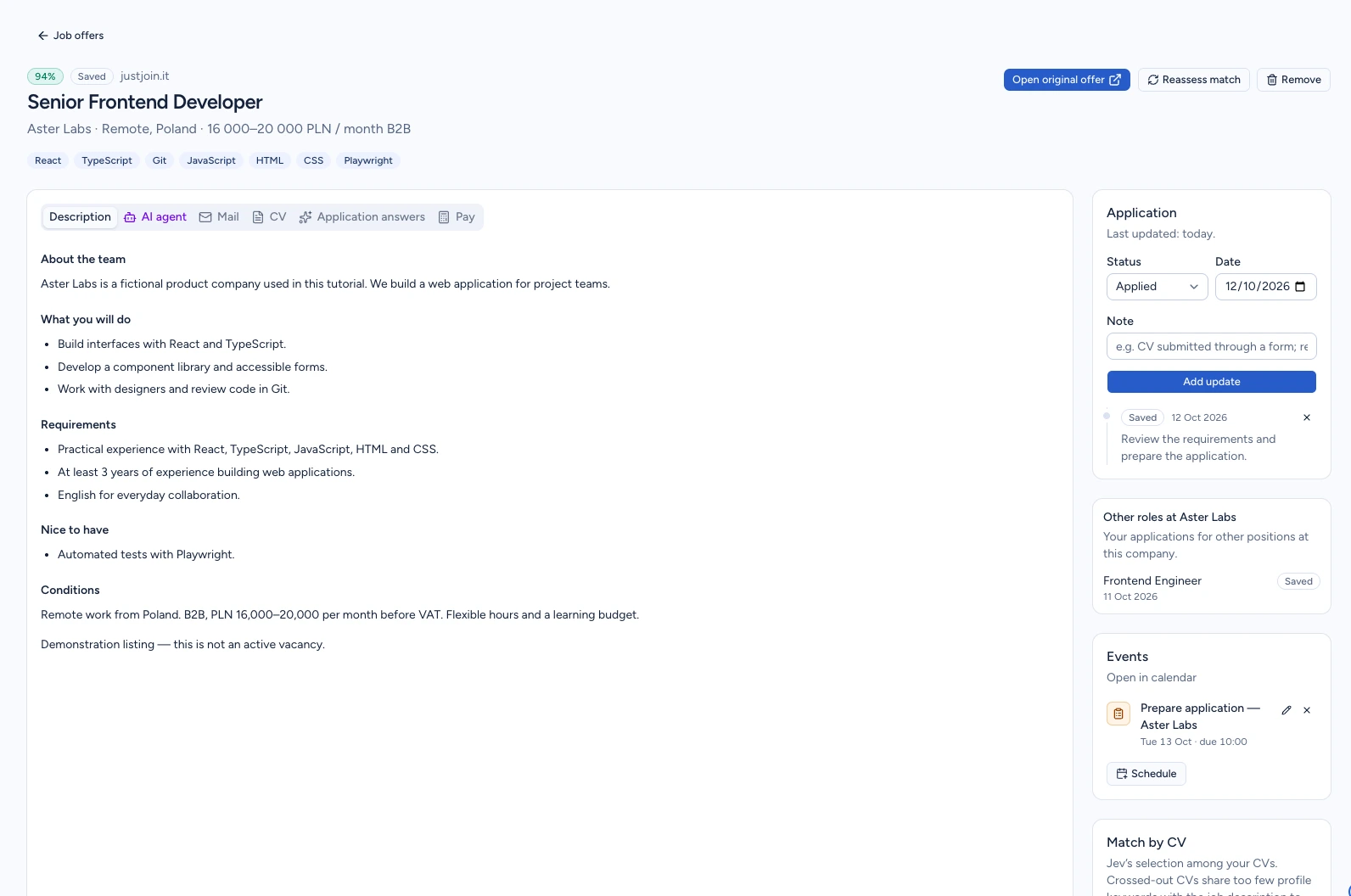
Click a job title. Its details open in a new tab. Read Description and check the employer, location, pay, requirements and working conditions.
Match by CV shows each document's score and matching keywords. A crossed-out CV has too few required keyword matches. A score such as 94% helps you prioritise offers; it is not a probability of getting hired.
Opening the details marks the offer as seen, so it no longer appears under Unseen only. It does not set the application status to Applied. Reassess match queues this offer for another assessment.
Expected result: You can identify the job requirements and the CV behind its match score.
Step 5. Prepare a CV for this offer
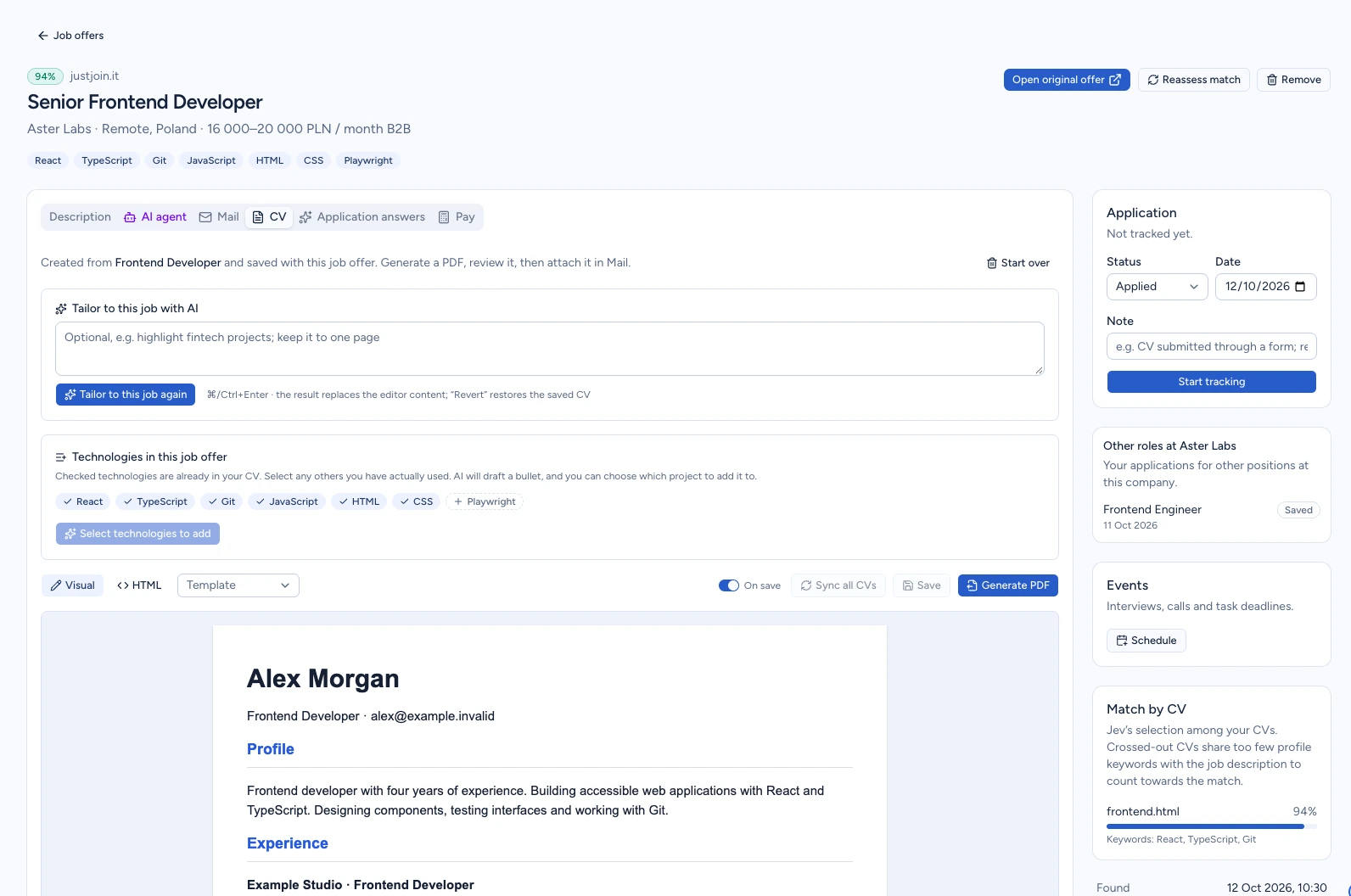
Open CV and select a document under Start from. Choose Create a copy without AI to save a separate copy with this offer. Review it in the editor that opens.
When AI is available, you can instead select Tailor to this job with AI and provide instructions. Review the generated document, its facts and any points flagged for checking.
You can edit the copy and prepare a PDF for the application or Mail. Creating the copy leaves the base document unchanged and does not send it to the employer. The video shows creating and opening the copy; prepare the final PDF after checking its content.
Expected result: A CV copy based on Frontend Developer is saved with this offer.
Step 6. Prepare answers to application questions
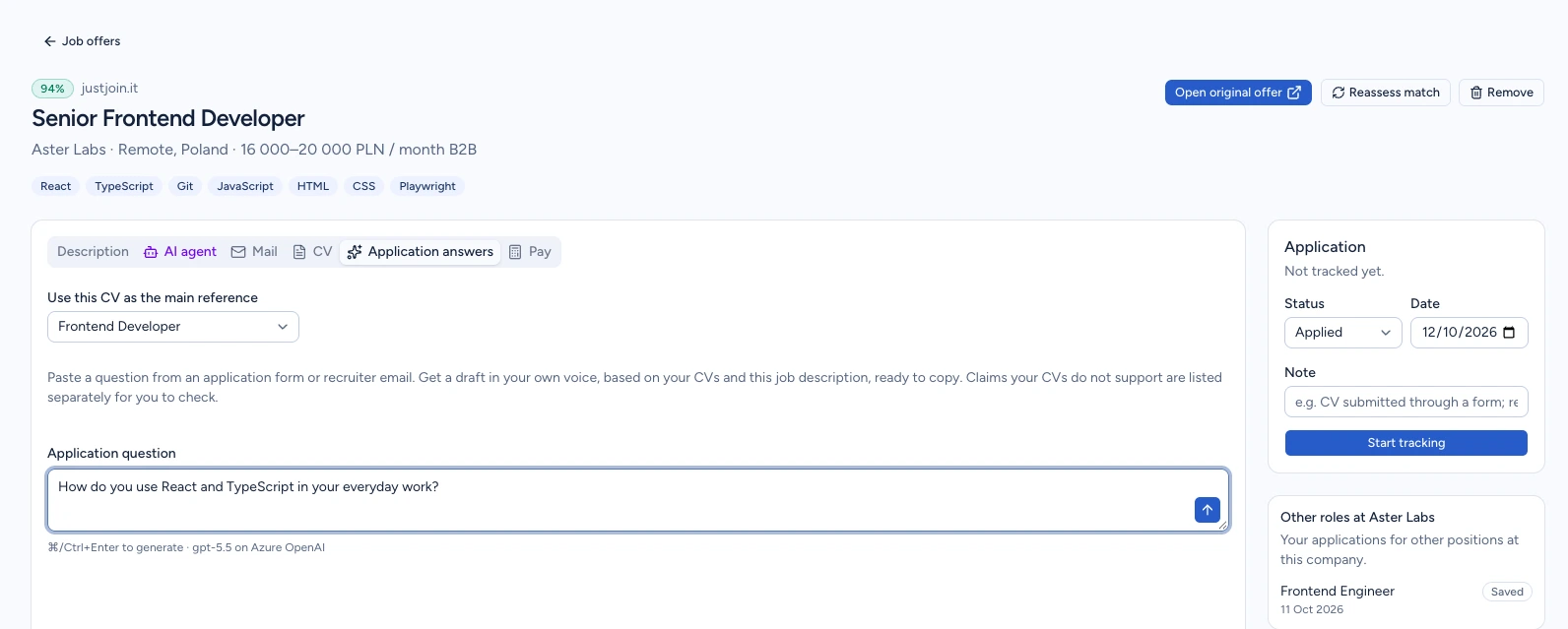
Open Application answers. Select a CV as the main reference and paste the question from the form or email, preferably using the employer's exact wording.
The arrow button, labelled Draft answer, starts generation. You can also use ⌘/Ctrl+Enter. This feature requires an available AI assistant.
Read the answer and check its facts and any claims the CV does not support before copying it into a form or email. The video shows entering the question; it does not generate an answer or send one to a recruiter.
Expected result: You know where to choose a reference CV and enter a question for this offer.
Step 7. Check mail linked to the offer
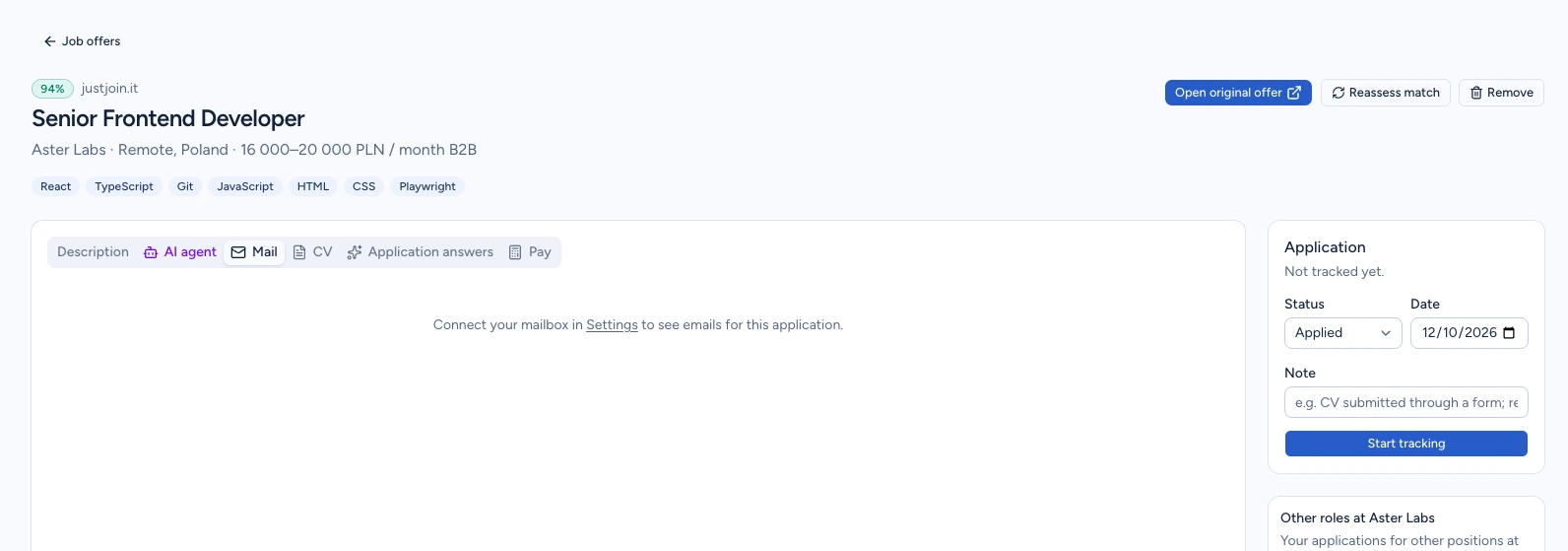
Open Mail. If no mailbox is connected, you will see a link to Settings. This is the state shown in the video.
Once a mailbox is configured, you can read messages about the offer, reply and prepare a new email. The mailbox search option helps find older correspondence.
Review a prepared message, save it as a draft or attach a CV PDF. Before confirming a send, check the recipient, message and attachment. Check mail above the offers list starts a check of your connected mailbox.
Expected result: You know where to find correspondence for this role and where to connect a mailbox.
Step 8. Compare pay
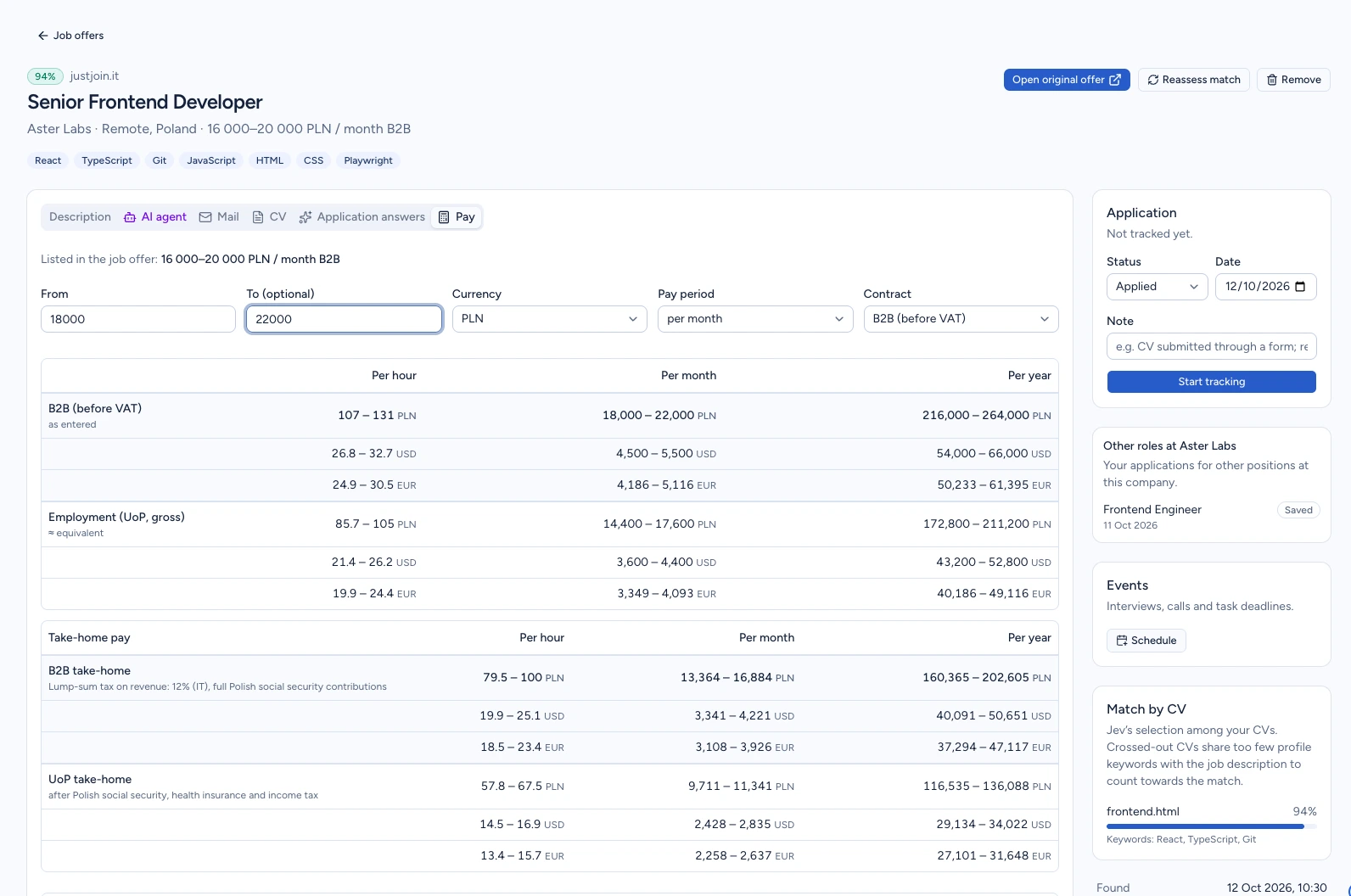
In Pay, check the From and To amounts, currency, pay period and contract type. Enter another range to compare it. The example changes the range to PLN 18,000–22,000 per month.
The calculator shows hourly, monthly and annual amounts, employment and B2B equivalents, and estimated take-home pay. Expand the assumptions to review working hours, tax treatment and costs.
Results are estimates based on the assumptions and exchange rates. The recording uses example data and exchange rates. Changing the calculator does not change the employer's advertised pay.
Expected result: You can compare amounts with a known pay period, contract type and calculation assumptions.
Step 9. Explore the AI agent start screen
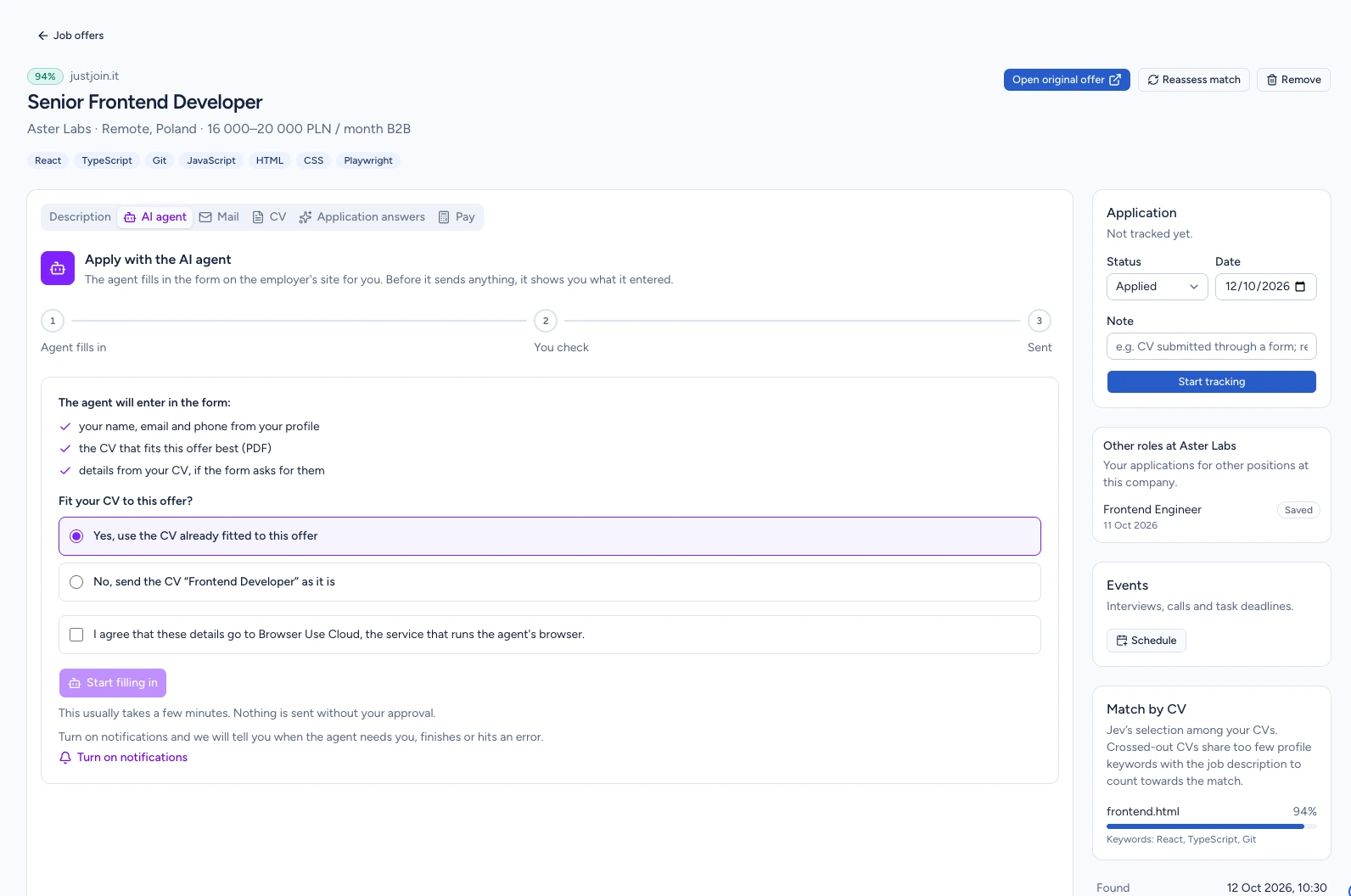
If AI agent is available, open the tab and review the CV choice and the information needed to fill the application form. The agent requires an HTTPS offer link and an available service.
Starting requires consent to share the necessary data with Browser Use Cloud. You can select a base CV or the copy prepared for the offer. Starting form filling begins a separate process on the employer's website.
When the agent presents a summary, check the fields and decide whether to submit or request changes. Follow its status messages: some external forms submit as soon as they are filled, which CVER reports as a separate state. This guide only shows the start screen.
Expected result: You recognise where to start the agent and can identify the data and CV you would use.
Step 10. Save a status, note and deadline
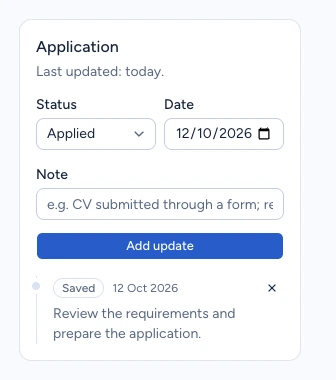
In Application, choose a Status, check the Date and add a Note. To keep the role for later, select Saved and click Start tracking.
The other statuses are Applied, Interview, Offer received, Rejected and Withdrawn. Use Add update when you already track the offer. The history lists successive updates; record the actual stage of the recruitment process.
Under Events, select Schedule. Set a type, title, date and any link or note, then choose Add to calendar. The example saves a task deadline named Prepare application — Aster Labs. Adding an event organises your own work; it does not arrange a meeting with the employer.
Expected result: The offer has a Saved status, a note and a linked deadline also available in the calendar.
Step 11. Open the original listing and check the status
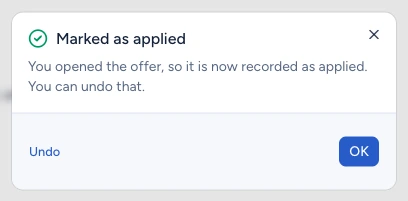
Open original offer opens the source listing in a separate tab. For an untracked or Saved offer, it also automatically adds an Applied status.
Opening the page does not send a CV or submit a form. If you only want to read the listing, choose Undo in Marked as applied. This restores the previous state, which is Saved in the example.
The button does not add another Applied status if the application is already further along. Check the source listing for its current availability and application method. The recording shows CVER's message and Undo, without opening a real employer's website.
Expected result: You can distinguish opening a listing, recording a status and actually submitting an application.
Step 12. Remove unsuitable offers from the current list
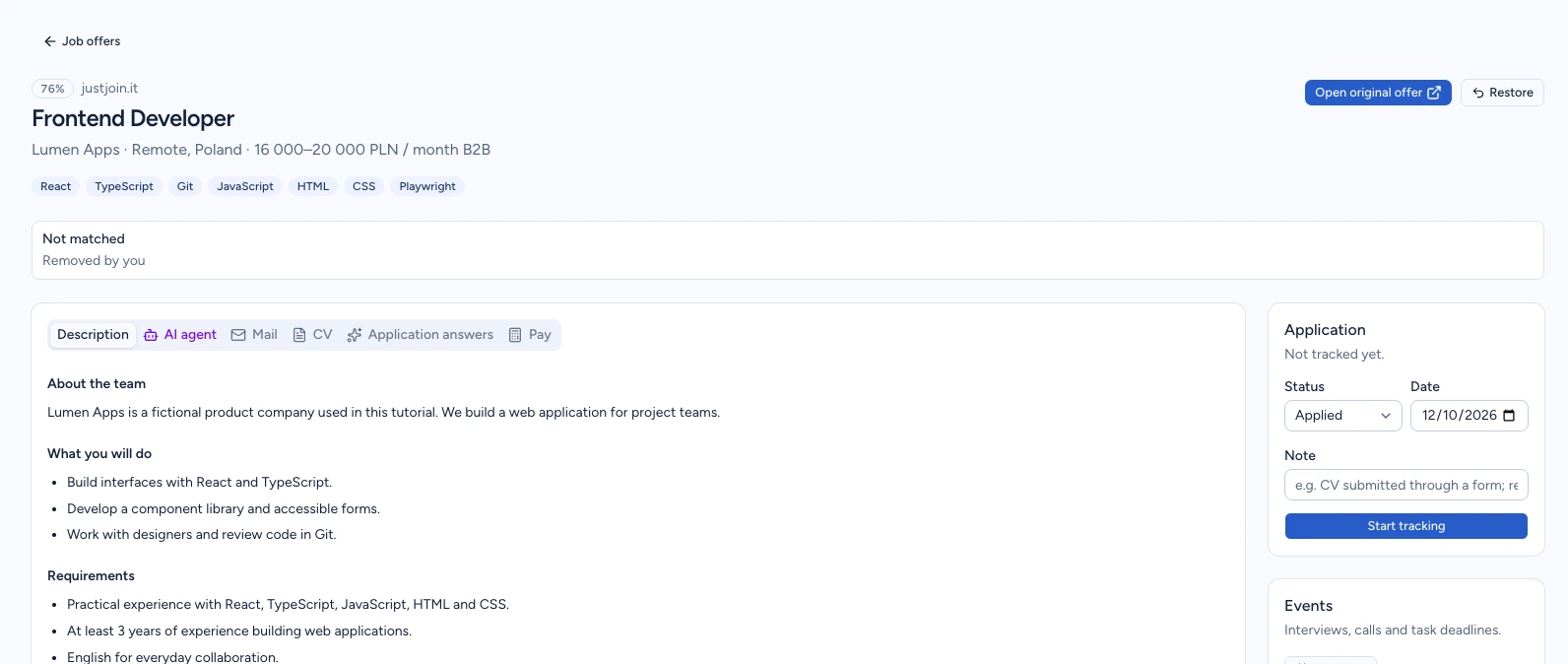
Choose Remove on an offer you no longer want to consider. CVER moves it to Not matched and marks it as removed by you.
The offer keeps its record. Find it under Not matched and use Restore to queue it for assessment again. It remains pending until reassessed and may not return to Matched.
The video removes a second demonstration offer from Lumen Apps, then returns to the selected Aster Labs role to check the saved data after refreshing.
Expected result: The unsuitable offer is marked as removed by you, while the selected role remains available for further work.
Check the result
Refresh the selected offer's details. Check its Saved status, note and deadline under Events. If you used Undo after opening the source listing, the automatic Applied update should no longer be in its history.
Reopen CV to check the saved copy. Return to Job offers and find your custom filter. These saved items let you continue preparing the application without repeating your earlier work.
The saved data does not confirm that an application was submitted. Sending a form, email or agent application requires further actions, which this video does not perform.
If something goes wrong
| Symptom | Cause | What to do |
|---|---|---|
| No offers in this view. | The search or active filters do not match offers in the selected assessment tab. | Choose Clear filters. If the view is still empty, check All and the other assessment tabs. |
| An offer disappeared after I read its details. | Unseen only is enabled and opening the details marked the offer as seen. | Turn off Unseen only and search for the title or employer. If you used Mark all as seen, this filter excludes all the offers it marked. |
| Set at least one condition so the filter can narrow down results. | The custom filter has a name but no conditions. | Add a word to match in the title or description, or a work arrangement, then save the filter. |
| A filter with a 101% score cannot be saved. | Minimum match score must be between 0 and 100. The form asks you to check the fields. | Enter a number from 0 to 100 or leave it empty if you do not want a minimum score. |
| You already have a filter with this name. | A custom filter with this name already exists on your account. | Use another name or edit the existing filter under Your filters. |
| The offer says Applied even though I have not sent anything. | Open original offer automatically records that status for an untracked or Saved offer. | Choose Undo in the message. Check the application history and keep the status consistent with what you actually did. |
Next steps
- Tailor your CV to a specific job
Review an AI suggestion, edit the content and download the PDF.
- Add another CV
Expand the document library you use with job offers.
- Track applications and replies
Explore the separate workspace for recruitment processes you have started.