Resume builder or document editor? How to choose your workflow
Choose the workflow that meets your must-have requirements, then consider preferences. Start with what you need to change, keep, export and recover—not with a tool ranking. If a must-have remains unresolved, keep your choice provisional.
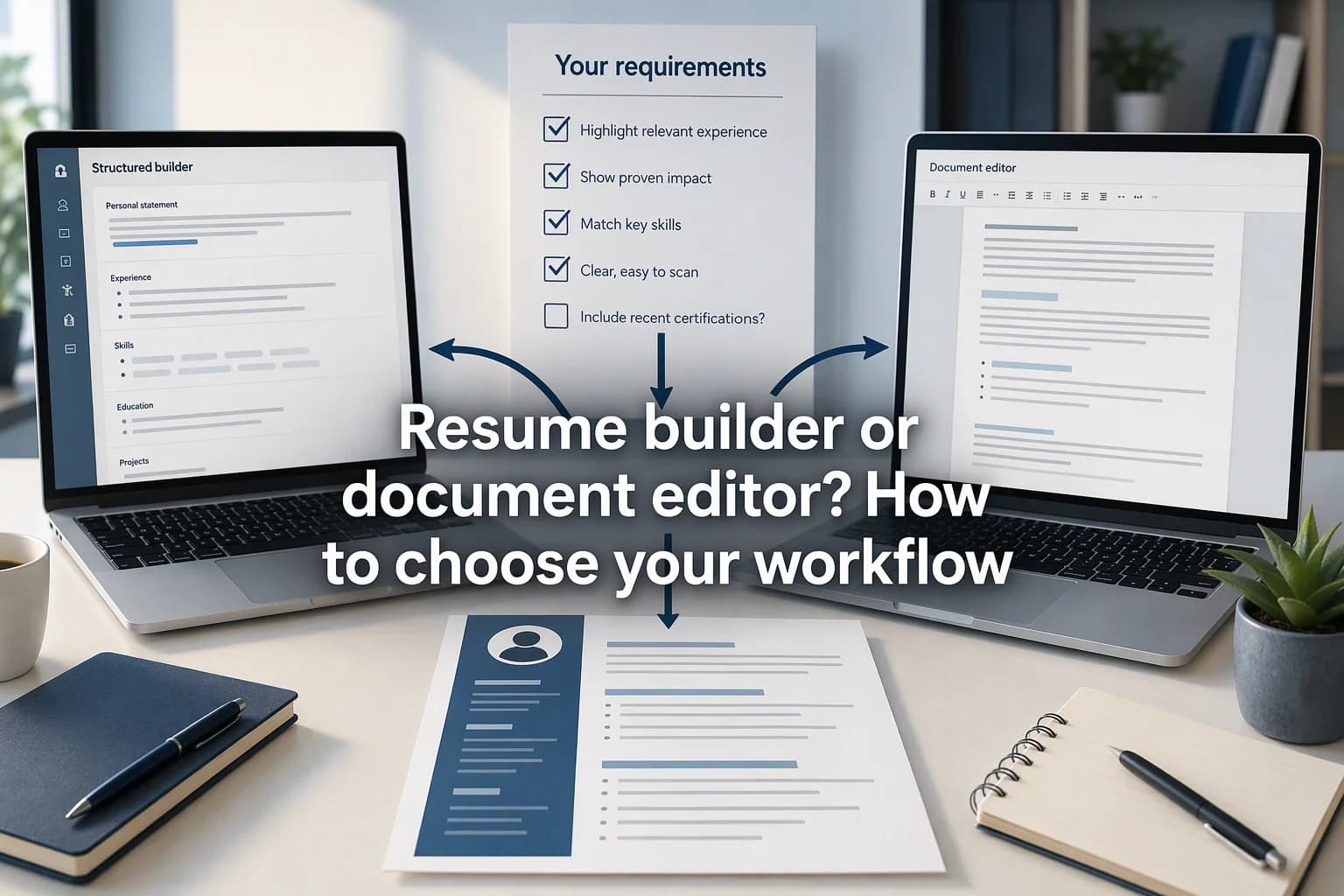
Choose by requirements, not category labels
To build your resume, evaluate five dimensions: editing control, submission export, editable-source portability, privacy conditions and revision access. The worksheet below helps you compare two shortlisted workflows and identify the checks that could change your decision.
Here, “resume builder” and “document editor” are descriptive labels, not fixed, mutually exclusive feature sets. Check the actual workflow and account you would use. This is a practical decision method, not a tested vendor recommendation, security assessment or prediction of hiring results.
Define what your workflow must do
For each requirement, write “must-have” or “preference” and describe what would count as meeting it. A must-have is a condition you are unwilling to trade away; a preference can be exchanged for another benefit.
Use these prompts to make your requirements concrete:
- Wording: Can I retain exact control over descriptions, job titles and dates?
- Sections: Can I add, remove and reorder the sections I need?
- Export: Can I obtain the file required by the application instructions?
- Editable source: Can I keep a copy that I can edit independently of the original service?
- Privacy: Are the applicable sharing, storage and processing conditions acceptable to me?
- Earlier work: Can I access and recover the revisions I need with my permissions?
Adapt the requirements to your situation
Add device, offline-working or collaboration requirements if they matter to you. These are questions to investigate, not capabilities assumed to exist.
For an early-career candidate or career changer, another useful requirement is being able to represent projects, volunteering or other non-employment experience with accurate labels. Decide what your document needs rather than assuming a universal section order.
Check editing control with concrete changes
Give each shortlisted workflow the same small editing tasks. Revise a bullet, preserve a title and date, add an applicable section and move it to a different position. Check the resulting document rather than relying on a feature label.
Ask whether you can keep your intended wording without accepting unwanted changes. If suggestions are offered, accepting them remains your decision. A more polished sentence is not useful if it changes what you actually did.
This check concerns control over editing, not which achievements to include. For that separate task, check role-specific changes against your original CV.
Separate export from editable-source portability
Distinguish three things: the document you edit, the file you submit and the source you could take elsewhere.
Google Docs’ desktop help documents downloading a copy through File > Download and choosing a file type. See Google’s download instructions. That documents an export mechanism; it does not establish that your required format, account permissions or layout will work without checking.
Microsoft’s PDF-editing guidance warns that a PDF converted into Word may not preserve the original page-to-page correspondence. Lines and pages may break in different places. See Microsoft’s PDF-conversion guidance, which lists Word for Microsoft 365, Word 2024, 2021, 2019 and 2016.
The practical implication is to assess editable-source access separately from PDF export. A downloadable PDF alone is not evidence of a lossless editing round trip.
Ask what you can download, which copy remains independently editable and whether another editor can reopen it with changes you consider acceptable. Follow the actual application instructions for the submission file. Detailed format selection and export troubleshooting are separate tasks.
Ask privacy questions before using real information
Write down the conditions you need to understand before entering personal or employer information:
- What document content, account information and usage data are stored?
- What are the sharing defaults, and who can receive or access the content?
- Which recipients or processors are identified in the applicable policies?
- If optional AI processing is offered, what information does it receive and what controls apply?
- What retention categories and removal procedures apply?
- What exceptions, backups or account-specific restrictions need checking?
Check what retention policies establish
Google’s broad retention policy distinguishes data users can delete, data deleted automatically and data retained for longer periods when necessary. See Google’s explanation of data retention.
That policy also describes deletion processes, backups and exceptions. It illustrates why an account-deletion option is not evidence of immediate removal of every data category. It does not establish the conditions or deletion deadline for your particular account, document or contractual arrangement.
Check the policies and settings applicable to each shortlisted workflow. Leave unanswered questions visible; this worksheet does not certify that a workflow is safe.
Check revision access and recovery requirements
“Version history” is not a complete answer. Ask who can browse earlier work, how to identify the revision you need and what the recovery instructions establish. Record unresolved questions about retention and completeness.
Google’s desktop help states that browsing earlier versions requires permission to edit the file. Its documentation also says revisions may occasionally be merged. See Google’s earlier-version and restoration instructions.
Those instructions make permissions relevant to your decision. Reading them is not the same as successfully recovering a revision, and they do not establish a guaranteed complete history or a specific retention period for your resume.
Evaluate the access and recovery you need. A folder structure, naming scheme and record of sent versions are separate document-organization tasks, not part of this comparison.
Try the same fictional document in both workflows
The following is a proposed trial, not one performed for this article. Use fictional data and a disposable document. If you run it, record the workflow, account type, application version where available and trial date.
Fictional-data trial checklist
Use the same small tasks in both workflows:
- Change the bullet to: “Added sign-in checks for valid and invalid inputs to a personal practice application.”
- Check that the intended wording, job title and dates remain intact.
- Add a “Learning projects” section, move it and remove an unnecessary section.
- Export a copy in the format you need to investigate.
- Reopen the exported copy and inspect text, omissions, clipping and page breaks.
- Investigate whether an independently editable source is available; try reopening a disposable copy elsewhere only if safe.
- Read the applicable sharing, storage and optional-processing documentation.
- Inspect revision-access and recovery instructions; record required permissions and unanswered questions.
Keep the trial safe and bounded
Do not enter real candidate or employer data, send applications, change sharing permissions, delete accounts or history, or overwrite important documents. If a step cannot be performed safely, leave it not tested.
Inspecting one export gives a limited observation about that file under those conditions. It does not prove the behavior of every future document or recruitment system. No export or recovery operation was tested for this article.
Complete the unscored comparison worksheet
Use A and B for any two shortlisted workflows; neither label represents a real vendor here. Copy the table and fill it after checking.
Keep these states distinct:
- Documented: stated in documentation applicable to the identified workflow and account.
- Observed: actually seen in your identified trial.
- Unknown: the answer has not been established.
- Not tested: the operation has not been tried.
Record answers, evidence and next checks
These states can coexist. “Documented; not tested” means you found an applicable instruction but did not perform the operation. An observed result applies only to the conditions recorded in that trial.
| Requirement | Importance to me | Workflow A answer/observation and state | Workflow B answer/observation and state | Evidence or trial reference | Unresolved question / next action |
|---|---|---|---|---|---|
| Exact wording, titles and dates remain under my control | Choose must-have or preference | Unknown; not tested—fill after checking | Unknown; not tested—fill after checking | Add exact documentation URL, account and check date, or trial note | Can I preserve every intended change? |
| Add, remove and reorder required sections | Choose must-have or preference | Unknown; not tested—fill after checking | Unknown; not tested—fill after checking | Add exact documentation URL, account and check date, or trial note | Which section task remains unresolved? |
| Obtain the required submission export | Choose must-have or preference | Unknown; not tested—fill after checking | Unknown; not tested—fill after checking | Add application instruction and applicable export documentation or trial note | Is this format available under my account conditions? |
| Keep and reopen an independently editable source | Choose must-have or preference | Unknown; not tested—fill after checking | Unknown; not tested—fill after checking | Add applicable source-export documentation or reopening trial note | Can I edit elsewhere with acceptable changes? |
| Accept sharing, storage and optional-processing conditions | Choose must-have or preference | Unknown; not tested—fill after checking | Unknown; not tested—fill after checking | Add applicable policy URL, account, settings and check date | Which processing or removal condition needs clarification? |
| Access and recover the earlier work I need | Choose must-have or preference | Unknown; not tested—fill after checking | Unknown; not tested—fill after checking | Add applicable revision/recovery documentation or safe trial note | What permissions, retention or completeness questions remain? |
Make a conditional choice
Do not turn the rows into numerical scores. A convenient workflow cannot compensate for a failed must-have unless you consciously change that requirement.
Apply the decision rule to your worksheet
Use the same decision rule for your worksheet:
- Proceed when must-haves are established under conditions you accept.
- Investigate unknowns that could change your choice; keep the choice provisional meanwhile.
- Choose another workflow when a must-have fails.
- Accept preference trade-offs consciously, rather than treating the category label as the answer.
Connect the workflow to your search routine
Once you have a workable document process, fit document preparation into your job-search routine.
How to read the sources
The documentation below was accessed on October 6, 2026. Publication and update dates were not established. Microsoft and Google are bounded documentation examples, not ranked recommendations.
Sources and further reading
- Edit a PDFMicrosoft Support · Accessed
- Create, view, or download a file — ComputerGoogle Docs Editors Help · Accessed
- Find what’s changed in a file — ComputerGoogle Docs Editors Help · Accessed
- How Google retains data we collectGoogle Privacy & Terms · Accessed