How to track job applications, interviews and recruiter emails
Track each job application with a record that links the vacancy, the resume you sent, recruiter messages and your next action. Use the template below to keep those details current when a recruiter mentions another role or an interview moves to a new time.
1. Create a record for the specific role
When you open a record, you should be able to see which role it concerns, what you sent and whose response you are waiting for. A spreadsheet row, a note or a card in an application tracker can all work. Choose something you can update easily after a call or an email.
Yale School of the Environment's career office provides a sample job-search tracking spreadsheet and recommends keeping contacts, deadlines, follow-up actions and notes. The template below adds the resume version you submitted and the message supporting the current stage.
Copy these fields into your chosen tool and update them as the application progresses. Marta, Aster Labs and both roles in this guide are fictional. The first record shows the situation just after Marta applied on October 6, 2026.
| Field | What to record |
|---|---|
| Employer and role | Aster Labs, Backend Engineer, requisition BE-214. |
| Job listing | The specific vacancy URL and a saved job description with the date you captured it. |
| Application submitted | October 6, 2026, through the employer's form; a link to the submission acknowledgment. |
| Documents sent | marta-resume-BE214-2026-10-06.pdf and copies of any other materials submitted. |
| Contact | Nina, recruiter; the sender's address from the message you received. |
| Current stage | Applied. Receipt acknowledgment recorded in the history. |
| Latest event | October 6, 09:10: acknowledgment that the BE-214 application was received. |
| Next action and date | Waiting for the employer's message. Personal review date: October 8. |
| Interview | Time to be arranged; later, the date, time, time zone and meeting link or address. |
Two roles at Aster Labs need separate records. Include the requisition number when the employer provides one; otherwise, add the team or location. If you find the same vacancy on another board, you can add that URL to the existing record.
2. Update the stage when something happens
For each change, add a date, a brief note and a link to the message or employer-portal confirmation. “October 8: Nina proposed two interview times” will help you reconstruct the conversation more easily than an “Interview” label on its own.
Choose stage names that fit the way you work. This simple set is a useful starting point:
- Saved: you are considering the role or preparing an application.
- Applied: you sent the application by email or the form accepted your submission. Keep any available confirmation.
- Interview: you received an invitation or are arranging a meeting. Record the appointment details separately.
- Employment offer: the employer has made an offer with proposed terms.
- Closed: add the outcome, such as rejection, withdrawal or an accepted offer.
If the employer has gone quiet, add a note such as “No response since October 6” and a review date. Record a rejection when you receive that decision. If you choose to archive an application yourself, keep the reason so you can see later why you stopped following it.
3. Keep the resume you sent with this application
Before submitting, save a copy of the finished file and link it to the application record. A filename containing the role or requisition number and date will help you find it before an interview. Do the same for a cover letter, application-form answers and other materials you send the employer.
A link to an editable resume may point to different content after a few days of revisions. A saved copy of the submitted file shows you the experience and projects the recruiter has seen. Open that version before the interview and compare it with the job description.
If you send an updated resume later, add the new file with its sending date and a brief note. Keep the previous copy too. That gives a message such as “referring to your resume” a clear context after several email exchanges.
4. Match recruiter emails to the right role
When a message arrives, check the employer, position and requisition number. A recruiter may manage several hiring processes and suggest a different role in an existing thread. Create a record for that role at the Saved stage and attach a reference to the relevant message. Update the original application according to the news that concerns it.
If the message omits the role and the conversation leaves it unclear, ask the recruiter to clarify. Until then, mark your note “Role to confirm.” This is particularly useful with agencies that contact you about several employers.
Keep a link to the specific email if your mail service supports it. Also record the sender, date and subject so you can search for the message if the link stops working. Before replying, check the latest correspondence, including your Sent folder.
In Gmail, you can organize messages with labels containing the employer and requisition number. New replies do not automatically inherit a label you manually applied to the earlier conversation, as Gmail Help explains. Check your current inbox too and label subsequent messages.
5. Record the agreed interview time and check changes
After a question such as “Would Wednesday or Thursday work?”, record that scheduling is underway and add a task to reply. If you want to hold time in your calendar, label it tentative. For a confirmed interview, keep the message with the agreement, the date, time, time zone and meeting link or address.
For an international application, check which time zone the recruiter means. In Google Calendar, you can set a time zone for an individual event, and invitees see it in their own time zones. When copying the appointment into another tool, compare it with the original invitation. Ask the recruiter about a missing time zone or an ambiguous time.
Respond to the invitation as the recruiter requests. In Google Calendar, responding to an invitation notifies the organizer. You can note when you replied and any preparation you need to do in the application record.
Mark a proposed reschedule as a change awaiting confirmation. Once you agree on the new time, update the active event, check the meeting link and preserve the previous time in the history. If the original meeting has been canceled, remove it from your current schedule even while the replacement time is still being arranged.
6. Worked example: another role and a rescheduled interview
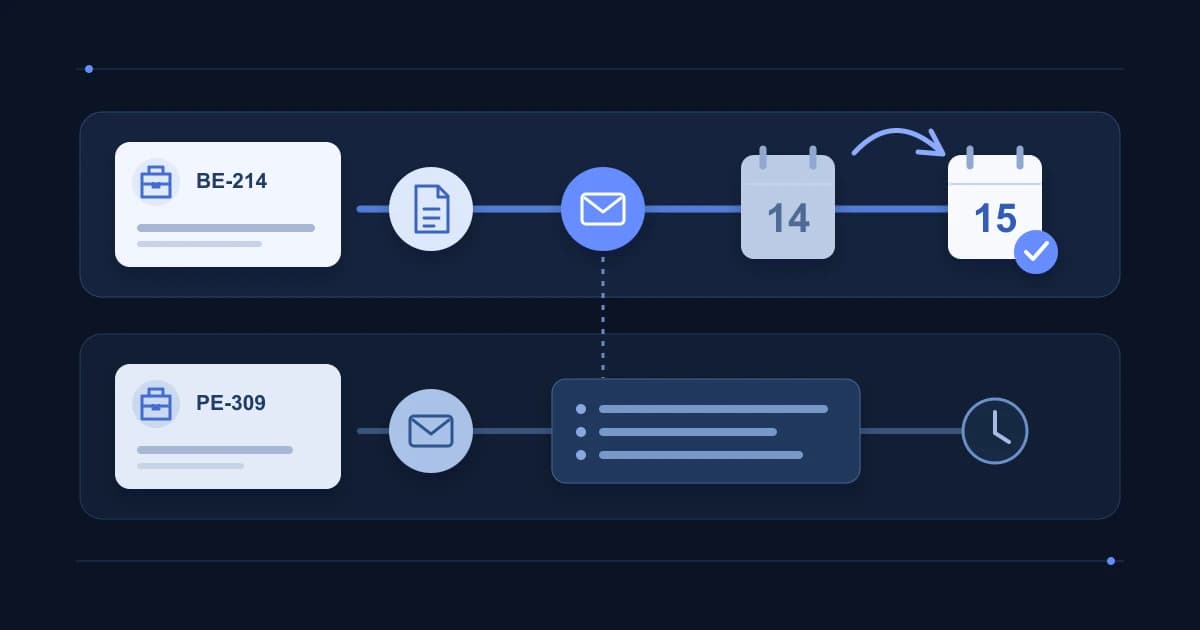
Marta applied for Backend Engineer BE-214 at the fictional employer Aster Labs. The same recruiter later suggested Platform Engineer PE-309 and moved the interview for BE-214. Here is what Marta records after each message.
All dates in the example are in October 2026, and all times use Europe/Warsaw. This is an illustrative sequence of messages; choose personal review dates that fit your own search.
| When | What happened | What to update |
|---|---|---|
| October 6, 09:10 | An acknowledgment arrives for the BE-214 application. | BE-214: Applied. Attach the acknowledgment and the resume file submitted through the form. |
| October 7, 14:20 | In the same thread, Nina asks whether Marta is interested in PE-309. | Create PE-309: Saved, under consideration. Reference this message. BE-214 remains Applied. |
| October 8, 10:00 | For BE-214, Nina proposes October 14 at 10:00 or October 15 at 14:00. Marta chooses the first time. | BE-214: Interview, time being arranged. Keep the proposed slots and Marta's reply. |
| October 9, 11:30 | Nina confirms October 14 at 10:00 and sends the meeting link. | Add the confirmed interview to the calendar, linked to BE-214 and the message containing the link. |
| October 12, 09:00 | Nina asks to move the interview to October 15 at 14:00. | Record the proposed change and a task to reply. Flag the appointment as awaiting reconfirmation. |
| October 12, 09:40 | After Marta accepts, Nina sends an updated invitation. | Set the active interview to October 15 at 14:00. Check the link. Keep the change from October 14 in the history. |
After the last message, BE-214 points to the interview on October 15 at 14:00. PE-309 is still awaiting Marta's decision. Before the meeting, Marta opens the resume she submitted for BE-214 and the latest invitation.
7. Start each review with the next action
Sort active applications by the date of the next action. Read messages that need a reply first, then check upcoming interviews and tasks. After a phone call or an update in an employer portal, add a short note to the relevant record.
If the employer's stated response date has passed, revisit the agreement and decide whether to follow up. The guide to recruitment stages and recruiter communication can help. Record your own review date separately from a date the employer has promised.
Leave a specific task, such as “Prepare two project examples by October 14” or “Reply to Nina about PE-309.” If you are waiting for the employer, say so and choose a date to return to the application. You can fit this review into your weekly job-search plan.
8. Keep application records in CVer
CVer's Applications view lets you review applications by status. An individual offer contains its status history, notes and linked correspondence. The application-tracking guide shows how to return to those details. Check a message about another position against the relevant offer, especially when role titles are similar.
After checking a connected mailbox, CVer can add a meeting time identified in an email. Compare it with the invitation. When an interview moves, check the earlier entry and edit it as needed. The interview-calendar guide explains what to review.
Watch the status after opening an original job listing: CVer may record Applied at that point. If you have not submitted the application, choose Undo in the message. The Job offers guide covers this step, along with adding a note and a personal calendar entry. Add the filename of the resume you actually sent and what you plan to do next to the application history.
Common questions
How can I reconstruct applications I did not track?
Start with your Sent folder, receipt acknowledgments and application histories in employer portals. Match the documents you find to roles and dates. If you cannot recover a date or the resume version you sent, mark the field unknown and return to it when you find confirmation.
What should I record after a recruiter calls?
Add the date, the recruiter's name, the role and the agreed next action. Include the meeting time and time zone if you arranged one. If the link is missing or details are unclear, ask for a confirmation message and add it to the record when it arrives.
Sources and further reading
- Job and Internship Tracking Spreadsheet SampleYale School of the Environment, Office of Career and Professional Development · Accessed
- Create & manage labels in GmailGoogle, Gmail Help · Accessed
- Use Google Calendar in different time zonesGoogle Calendar Help · Accessed
- Respond to event invitationsGoogle Calendar Help · Accessed